> ## Documentation Index
> Fetch the complete documentation index at: https://docs.gpuhub.com/llms.txt
> Use this file to discover all available pages before exploring further.
# Codex
> Configure Codex to use AI Gateway with an OpenAI-compatible API endpoint.
 Codex is a command-line coding assistant. You can route Codex requests through AI Gateway by configuring the OpenAI-compatible base URL and providing your API key.
Create or copy your API key from the console before starting Codex.
## Recommended: Manage Config with cc switch
Codex is a command-line coding assistant. You can route Codex requests through AI Gateway by configuring the OpenAI-compatible base URL and providing your API key.
Create or copy your API key from the console before starting Codex.
## Recommended: Manage Config with cc switch
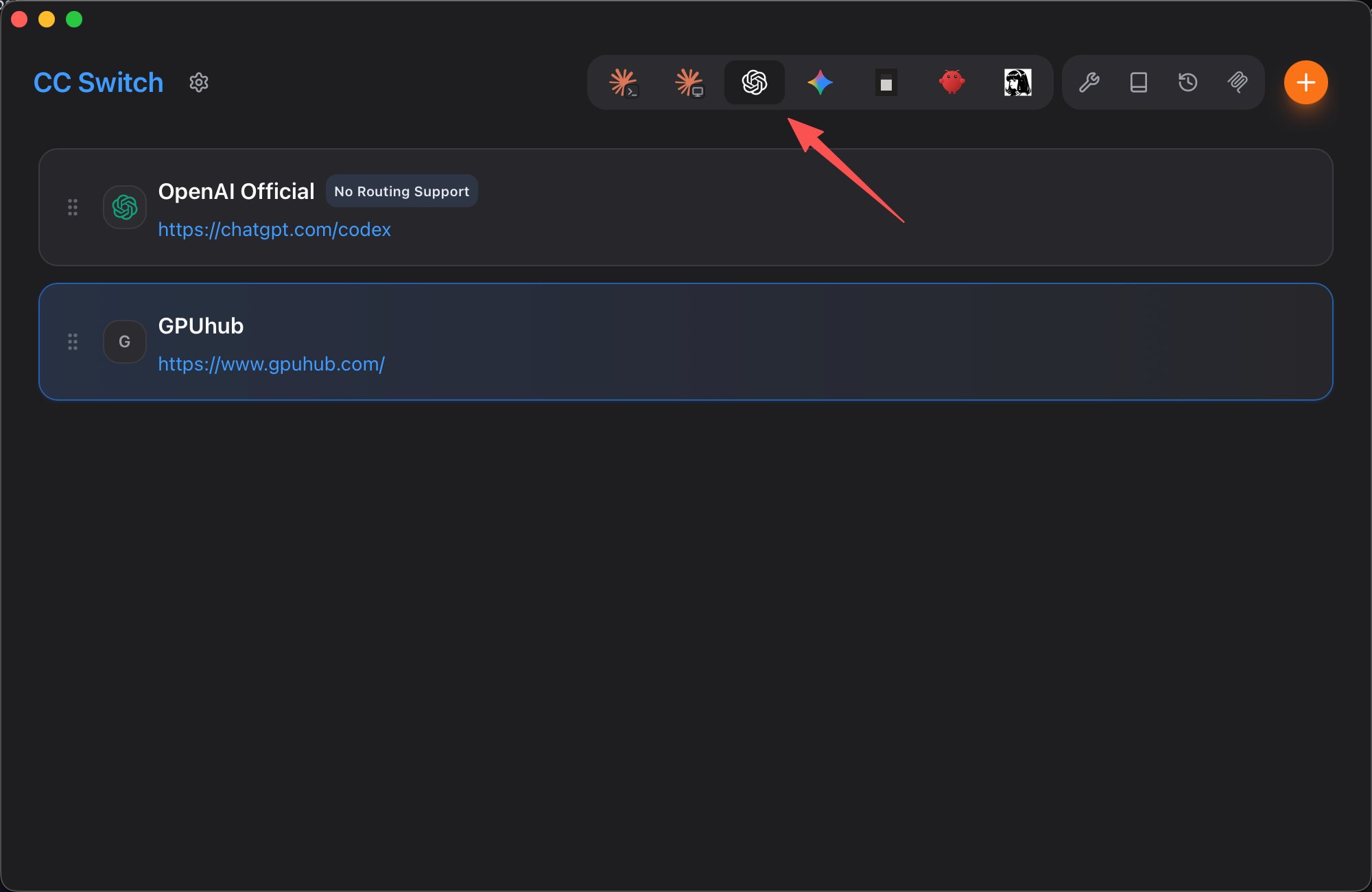
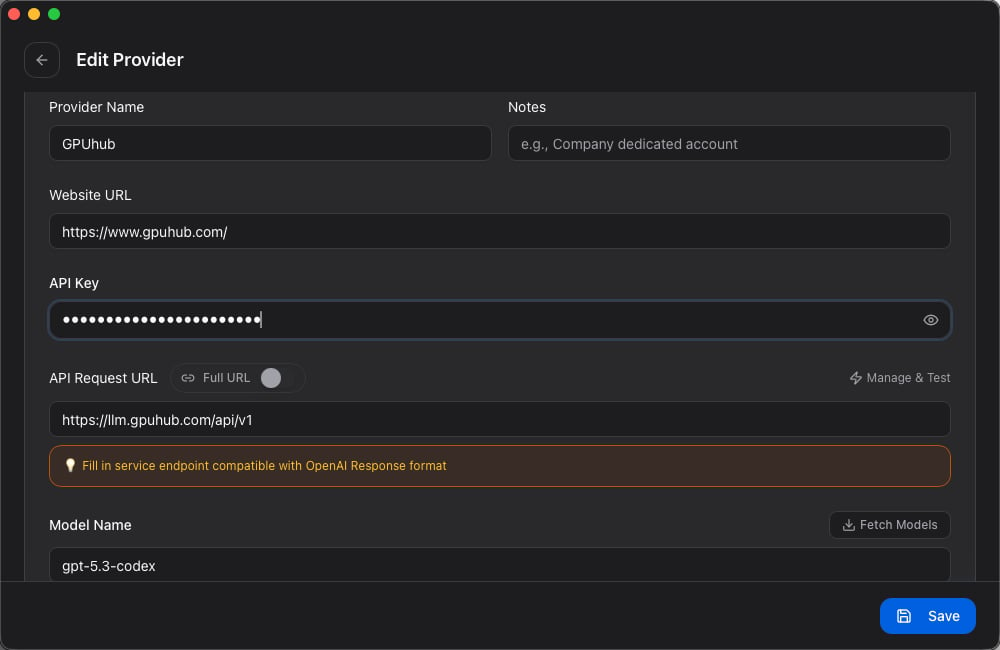
 If you use multiple coding agents, consider using [**cc switch**](https://github.com/farion1231/cc-switch) or a similar profile manager to maintain separate configurations for Codex, Claude Code, and other tools.
 ## Configure the API Base URL
Set the OpenAI-compatible base URL before starting Codex.
```bash theme={null}
export OPENAI_BASE_URL=https://llm.gpuhub.com/api/v1
```
To make this persistent, add it to your shell profile.
```bash theme={null}
echo 'export OPENAI_BASE_URL=https://llm.gpuhub.com/api/v1' >> ~/.zshrc
```
## Start Codex
```bash theme={null}
codex
```
## Provide Your API Key
When Codex opens the authentication menu, choose `Provide your own API key`.
## Configure the API Base URL
Set the OpenAI-compatible base URL before starting Codex.
```bash theme={null}
export OPENAI_BASE_URL=https://llm.gpuhub.com/api/v1
```
To make this persistent, add it to your shell profile.
```bash theme={null}
echo 'export OPENAI_BASE_URL=https://llm.gpuhub.com/api/v1' >> ~/.zshrc
```
## Start Codex
```bash theme={null}
codex
```
## Provide Your API Key
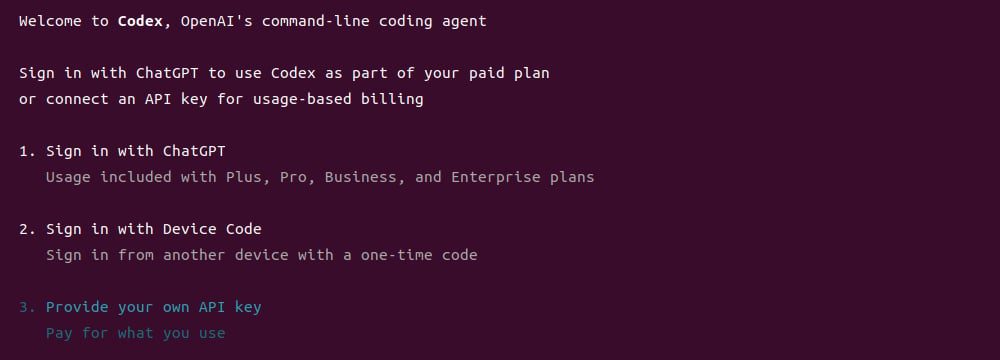
When Codex opens the authentication menu, choose `Provide your own API key`.
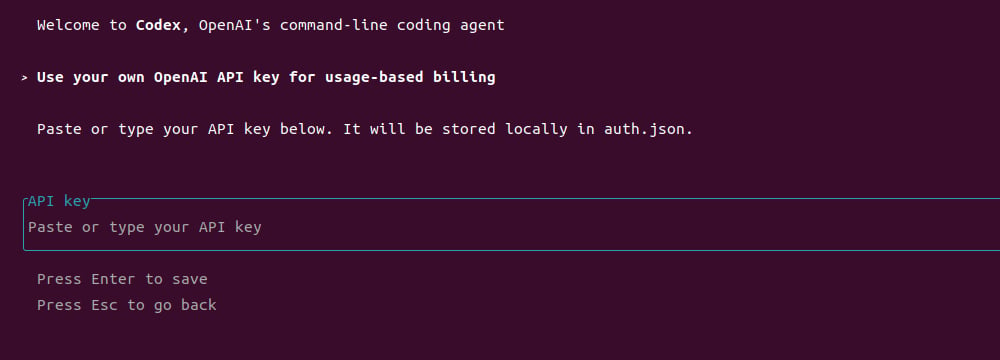 Paste your API key into the prompt and press Enter to save it.
 ## Start Using Codex
After configuration is complete, you can use Codex from the terminal for code generation, explanation, debugging, and refactoring tasks.
## Start Using Codex
After configuration is complete, you can use Codex from the terminal for code generation, explanation, debugging, and refactoring tasks.