> ## Documentation Index
> Fetch the complete documentation index at: https://docs.gpuhub.com/llms.txt
> Use this file to discover all available pages before exploring further.
# Trae
> Configure Trae IDE to call AI Gateway models through the Roo Code extension.
 Native Trae does not directly support external model providers. You can use external model APIs by installing the Roo Code extension and configuring AI Gateway as an OpenAI-compatible provider.
## Install Roo Code
Open the Trae extension marketplace, search for `Roo Code`, and install the extension.
## Configure the Model API
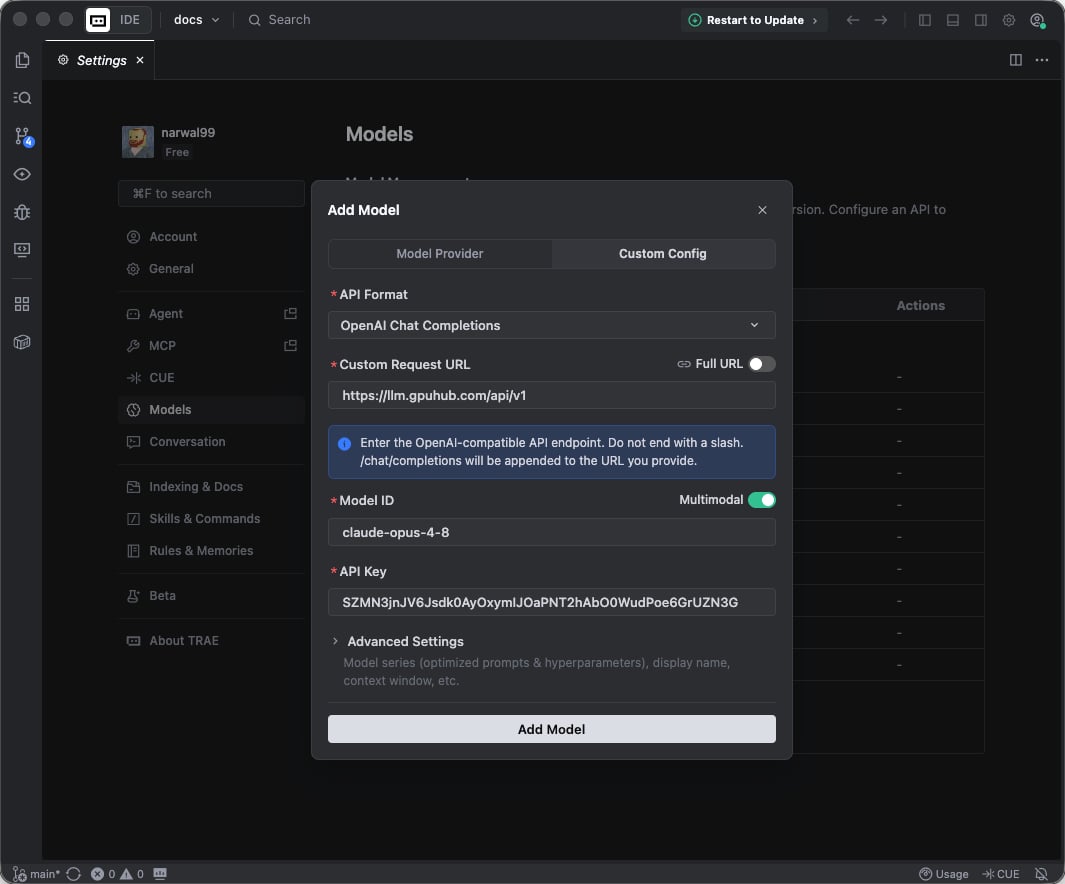
When selecting an API provider, choose `OpenAI Compatible`.
If you want to use Claude-series models, still choose `OpenAI Compatible` and use the OpenAI-compatible endpoint provided by AI Gateway.
| Field | Value |
| ------------ | ------------------------------------------------------------- |
| API Provider | `OpenAI Compatible` |
| Base URL | `https://llm.gpuhub.com/api/v1` |
| API Key | Your AI Gateway API key |
| Model | The target model name, such as `GLM-5` or `claude-sonnet-4-6` |
Native Trae does not directly support external model providers. You can use external model APIs by installing the Roo Code extension and configuring AI Gateway as an OpenAI-compatible provider.
## Install Roo Code
Open the Trae extension marketplace, search for `Roo Code`, and install the extension.
## Configure the Model API
When selecting an API provider, choose `OpenAI Compatible`.
If you want to use Claude-series models, still choose `OpenAI Compatible` and use the OpenAI-compatible endpoint provided by AI Gateway.
| Field | Value |
| ------------ | ------------------------------------------------------------- |
| API Provider | `OpenAI Compatible` |
| Base URL | `https://llm.gpuhub.com/api/v1` |
| API Key | Your AI Gateway API key |
| Model | The target model name, such as `GLM-5` or `claude-sonnet-4-6` |
 ## Context Length
If requests fail because of context length settings, adjust the context length in the extension configuration to match the selected model.
## Context Length
If requests fail because of context length settings, adjust the context length in the extension configuration to match the selected model.