> ## Documentation Index
> Fetch the complete documentation index at: https://docs.gpuhub.com/llms.txt
> Use this file to discover all available pages before exploring further.
# PyCharm
> Learn about developing remotely using PyCharm.
 If you use PyCharm to directly run or execute training programs in the terminal, make sure to [start a daemon process with tools like screen or tmux](/container-instance/run-in-background) after debugging is complete. This ensures that the program execution is not affected by SSH connection interruptions!
## Remote Project Development
[]()
Work wih GPUhub:
Confirm whether the PyCharm you have installed is the Community or Professional edition. **Only the Professional edition supports remote development features**.
Copy the SSH command for your instance, for example: `ssh -p 38076 root@region-1.gpuhub.com`
In the `ssh -p 38076 root@region-1.gpuhub.com command`, the meanings of the parameters are as follows:
* Username: `root`
* Host: `region-1.gpuhub.com`
* Port Number: `38076`
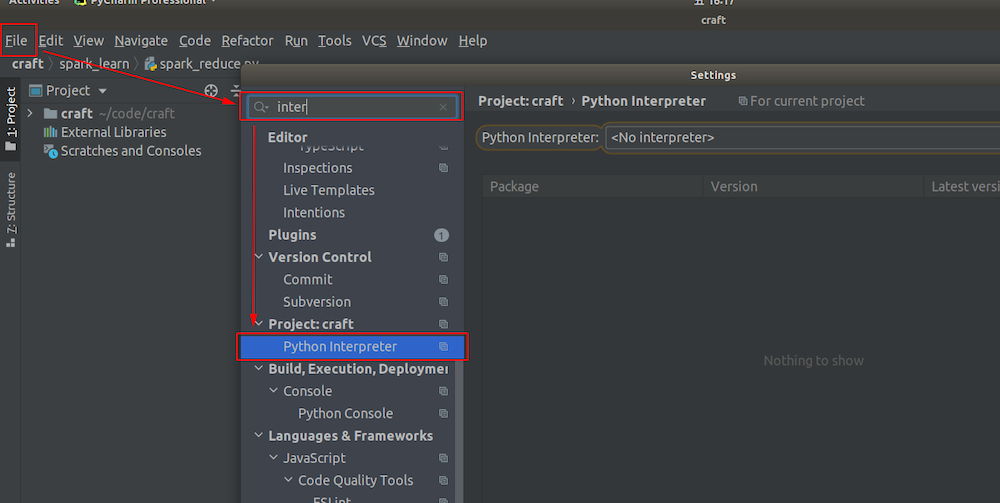
Go to **File -> Settings** to open the settings dialog, then search for "interpreter" to find the **Python interpreter** setting option.
If you use PyCharm to directly run or execute training programs in the terminal, make sure to [start a daemon process with tools like screen or tmux](/container-instance/run-in-background) after debugging is complete. This ensures that the program execution is not affected by SSH connection interruptions!
## Remote Project Development
[]()
Work wih GPUhub:
Confirm whether the PyCharm you have installed is the Community or Professional edition. **Only the Professional edition supports remote development features**.
Copy the SSH command for your instance, for example: `ssh -p 38076 root@region-1.gpuhub.com`
In the `ssh -p 38076 root@region-1.gpuhub.com command`, the meanings of the parameters are as follows:
* Username: `root`
* Host: `region-1.gpuhub.com`
* Port Number: `38076`
Go to **File -> Settings** to open the settings dialog, then search for "interpreter" to find the **Python interpreter** setting option.
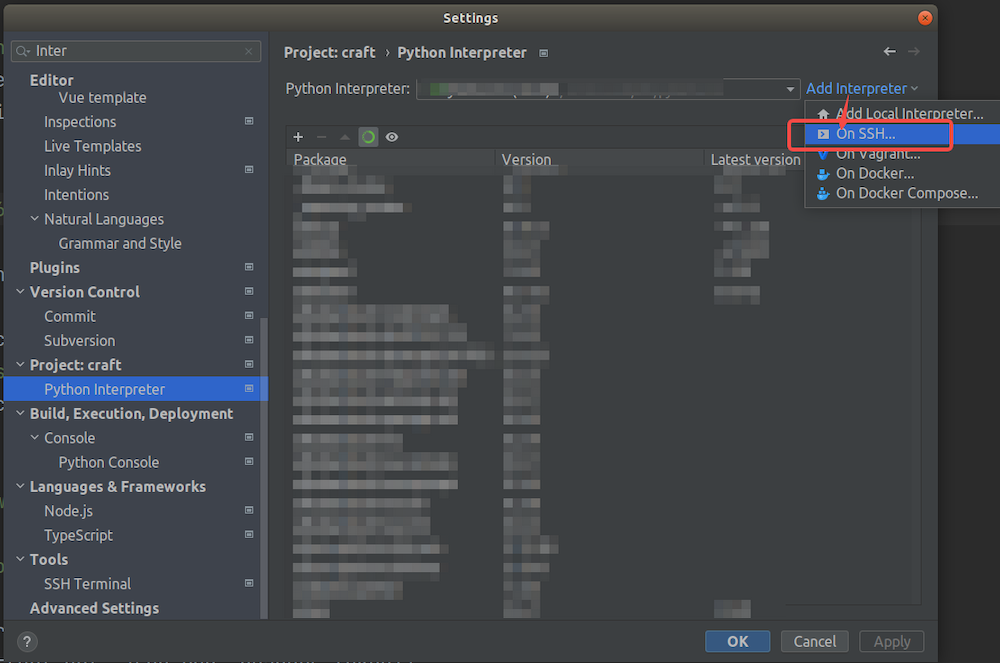
 Click on "Add Interpreter," select "On SSH" and click (this option is not available in the PyCharm Community version).
 Match and fill in the Host, Port, and Username from your instance's SSH command (the Username is always root, and you can find Host and Port in your instance's SSH command).
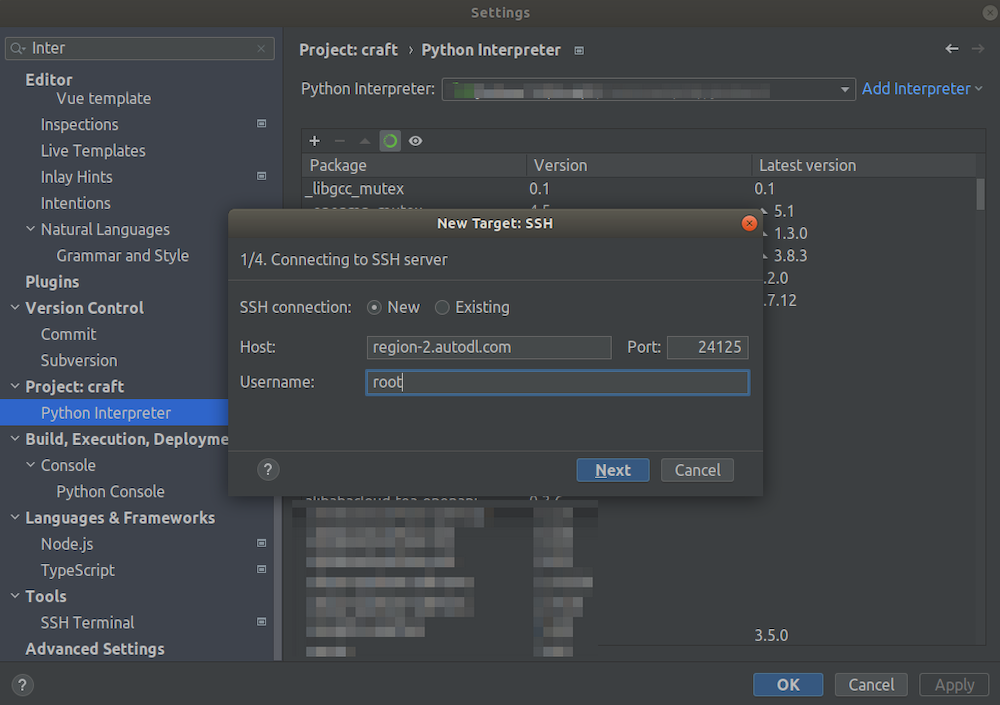 Next: Enter the SSH password.
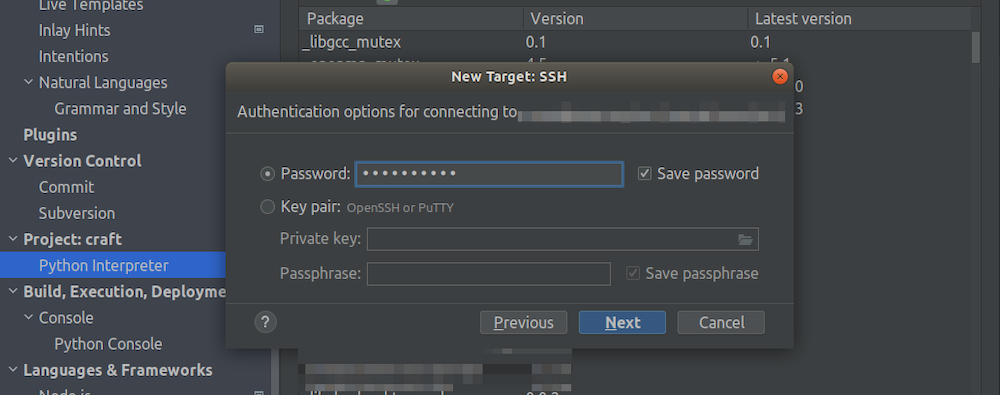 Continue to the next step until you see the following prompt. Choose "System Interpreter" and configure the remote Python interpreter path to `/root/miniconda3/bin/python` (if you have installed other virtual environments in miniconda, the path to the Python interpreter of the virtual environment is `/root/miniconda3/envs/{your_virtual_env_name}/bin/python`).
Configure the synchronization directory, which means associating the local project with which directory on the remote instance. Here, set it to the instance's data disk directory: `/root/gpuhub-tmp/project/` (Not recommended to use the default `/tmp` directory).
Continue to the next step until you see the following prompt. Choose "System Interpreter" and configure the remote Python interpreter path to `/root/miniconda3/bin/python` (if you have installed other virtual environments in miniconda, the path to the Python interpreter of the virtual environment is `/root/miniconda3/envs/{your_virtual_env_name}/bin/python`).
Configure the synchronization directory, which means associating the local project with which directory on the remote instance. Here, set it to the instance's data disk directory: `/root/gpuhub-tmp/project/` (Not recommended to use the default `/tmp` directory).
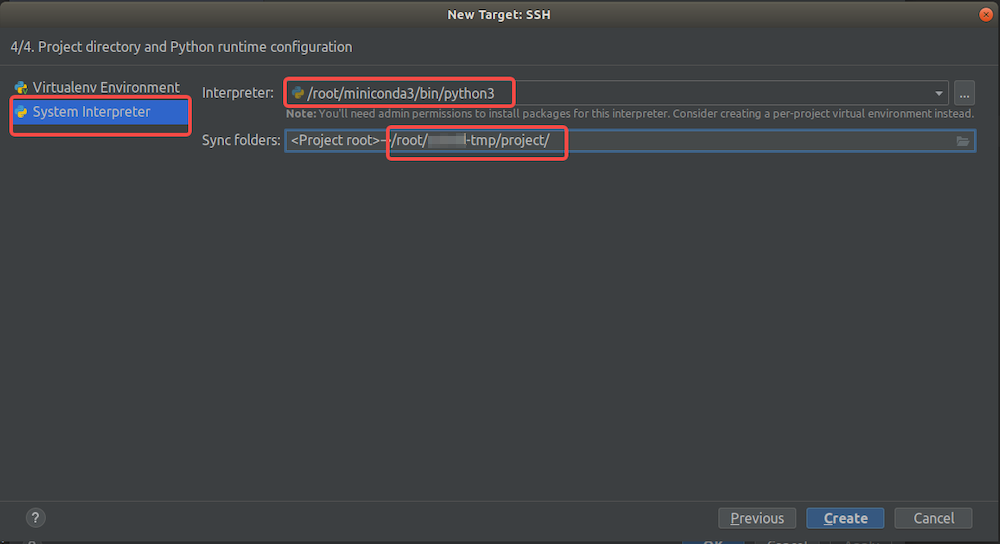 Click "Create" If the configuration is correct, PyCharm will configure for a short while, and you will be able to develop remotely after completion.
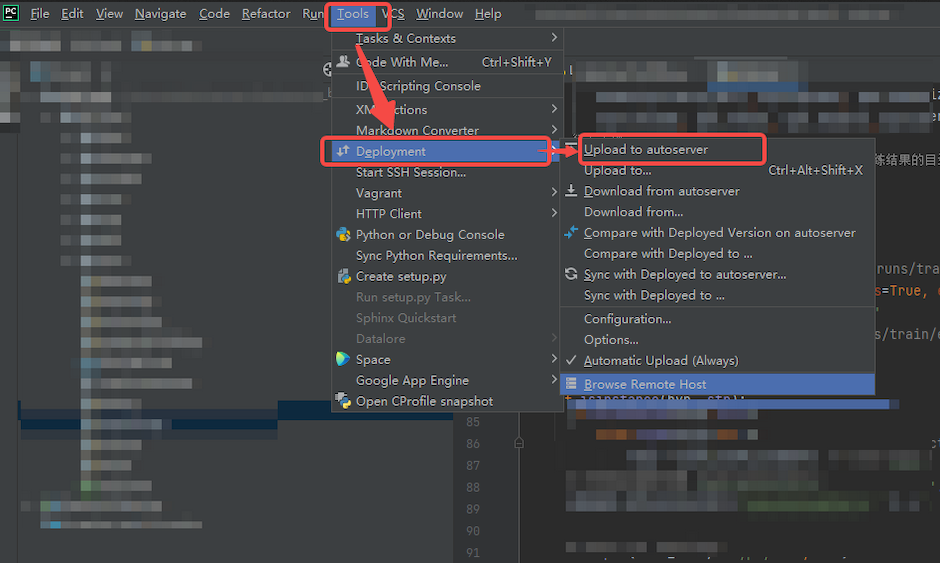
If you can't find Python files when running, it might be because the code hasn't synchronized automatically. You can then choose to synchronize manually:
Click "Create" If the configuration is correct, PyCharm will configure for a short while, and you will be able to develop remotely after completion.
If you can't find Python files when running, it might be because the code hasn't synchronized automatically. You can then choose to synchronize manually:
 ## Open a Remote Terminal
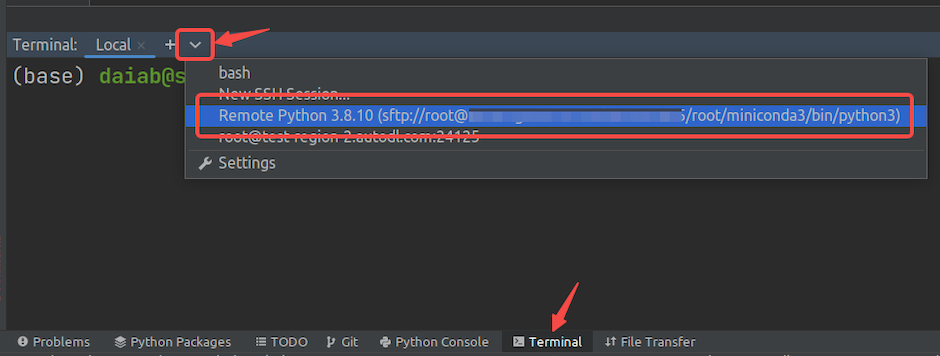
After setting up remote development in PyCharm, you can find and open a remote terminal from the PyCharm terminal dropdown menu by selecting the remote server:
## Open a Remote Terminal
After setting up remote development in PyCharm, you can find and open a remote terminal from the PyCharm terminal dropdown menu by selecting the remote server: