> ## Documentation Index
> Fetch the complete documentation index at: https://docs.gpuhub.com/llms.txt
> Use this file to discover all available pages before exploring further.
# VsCode
> Learn about developing remotely using VSCode.
 If you use VSCode to directly run or execute training programs in the terminal, make sure to [start a daemon process with tools like screen or tmux](/container-instance/run-in-background) after debugging is complete. This ensures that the program execution is not affected by SSH connection interruptions!
[]()
Work with GPUhub:
Before you start, you need to have VSCode installed. Additionally, you should:
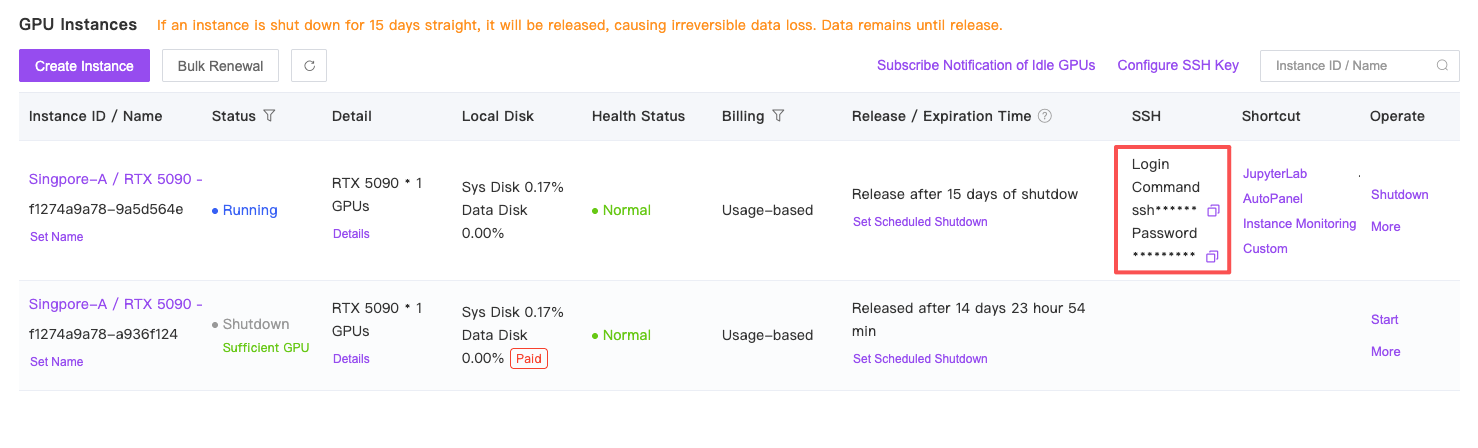
1. **Rent and power on an instance** on GPUhub, and obtain the SSH login information for the instance (login command and password).
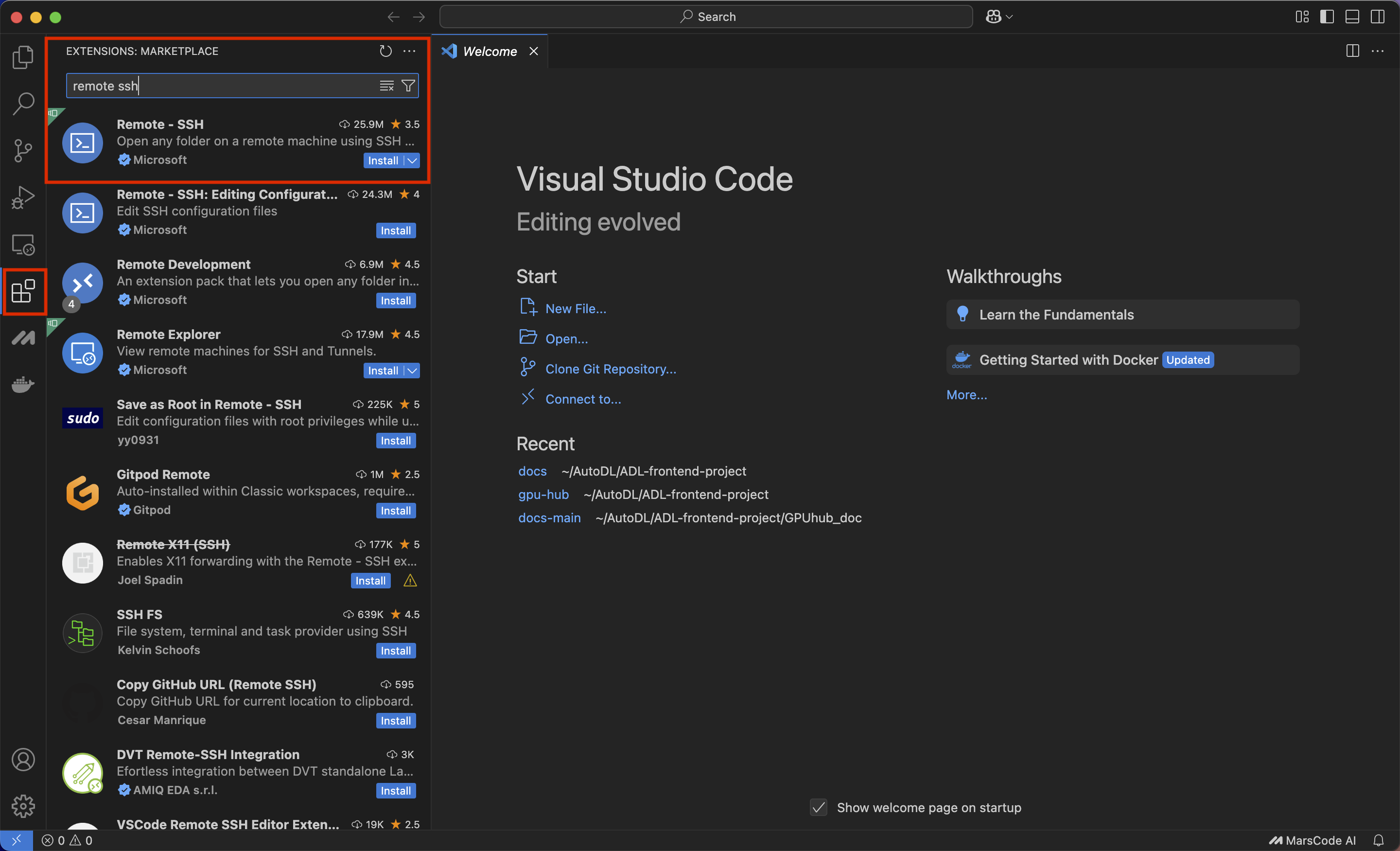
2. **Install the VSCode Remote Development extension** on your local machine (Remote-SSH configuration is required).
## 1. Log in to GPUhub and select the powered-on instance
Obtain SSH Login Information
If you use VSCode to directly run or execute training programs in the terminal, make sure to [start a daemon process with tools like screen or tmux](/container-instance/run-in-background) after debugging is complete. This ensures that the program execution is not affected by SSH connection interruptions!
[]()
Work with GPUhub:
Before you start, you need to have VSCode installed. Additionally, you should:
1. **Rent and power on an instance** on GPUhub, and obtain the SSH login information for the instance (login command and password).
2. **Install the VSCode Remote Development extension** on your local machine (Remote-SSH configuration is required).
## 1. Log in to GPUhub and select the powered-on instance
Obtain SSH Login Information
 ## 2. Configure Remote-SSH in your local VSCode
If you have already installed the **Remote-SSH** extension in your local VSCode development tool, you can skip this step and proceed directly to \[Step 3].
## 2. Configure Remote-SSH in your local VSCode
If you have already installed the **Remote-SSH** extension in your local VSCode development tool, you can skip this step and proceed directly to \[Step 3].
 ## 3. Establish an SSH connection and log in to your remotely rented instance
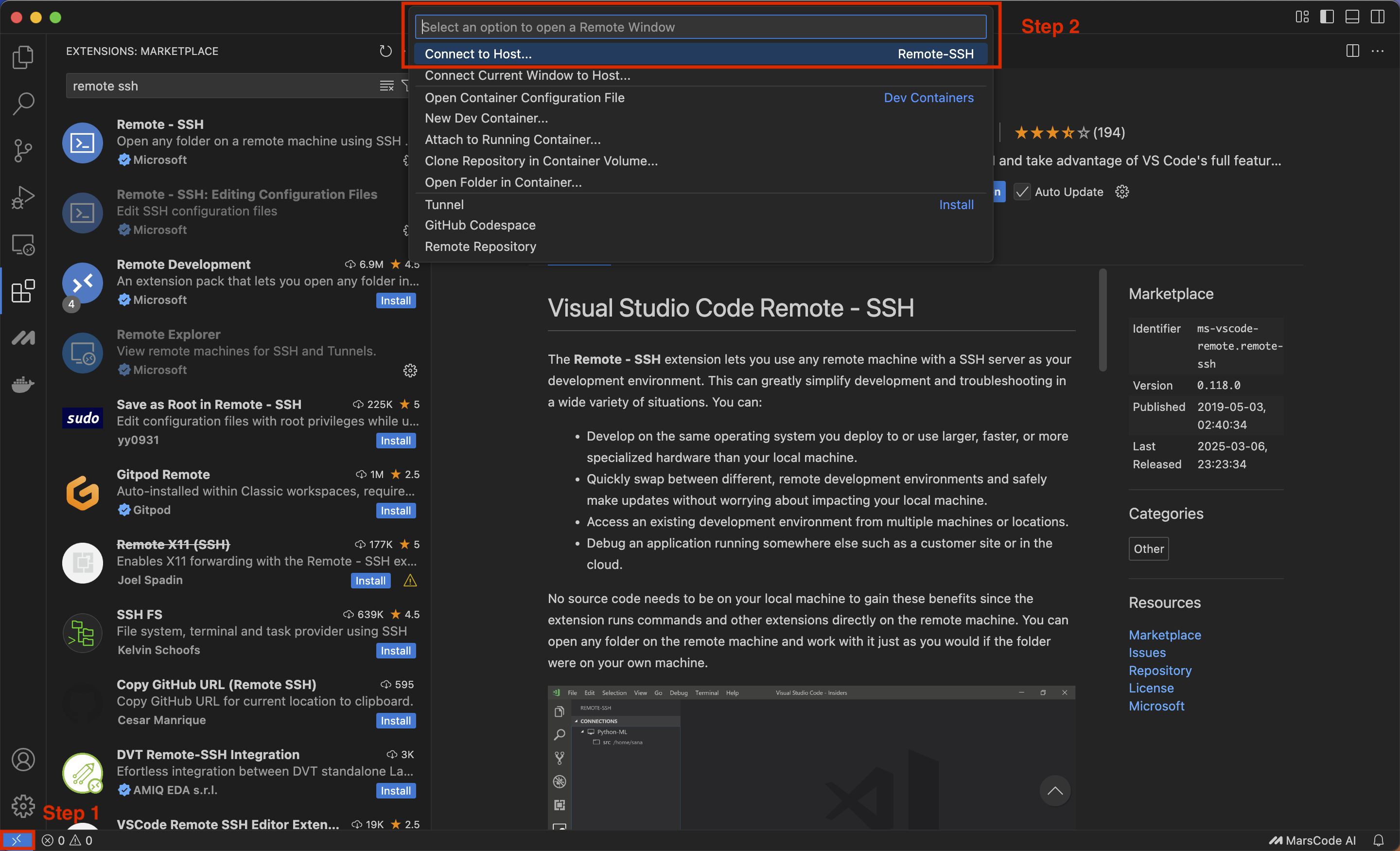
Click through as indicated in the illustration to complete adding an SSH host.
## 3. Establish an SSH connection and log in to your remotely rented instance
Click through as indicated in the illustration to complete adding an SSH host.
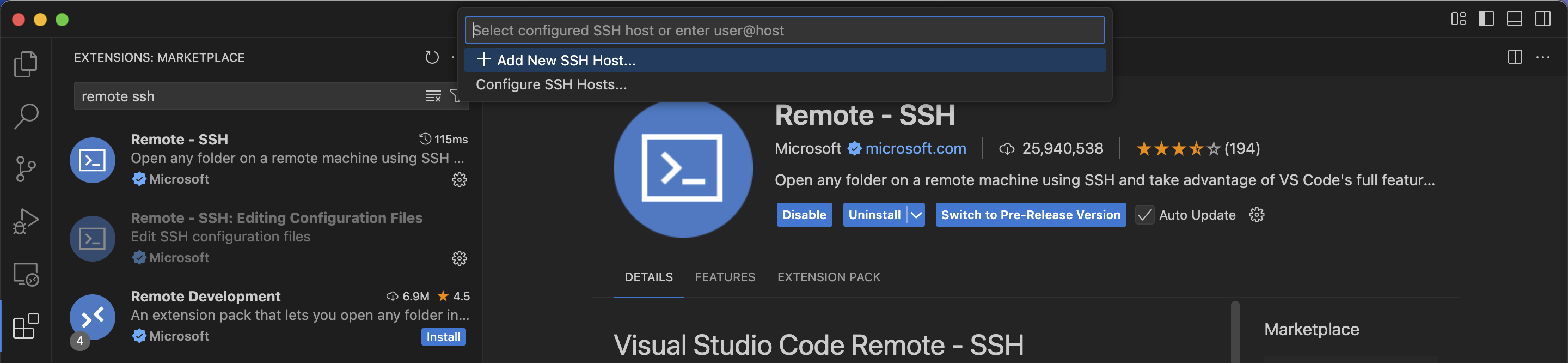
 Retrieve and copy the login information for your instance.
 Login Command:
The illustration uses `ssh -p 38909 root@region-1.gpuhub.com` as an example. Press the Enter key to continue the operation.
If there is a "space" at the end of this ssh command, please remove it, otherwise you may not be able to log in.
Login Command:
The illustration uses `ssh -p 38909 root@region-1.gpuhub.com` as an example. Press the Enter key to continue the operation.
If there is a "space" at the end of this ssh command, please remove it, otherwise you may not be able to log in.
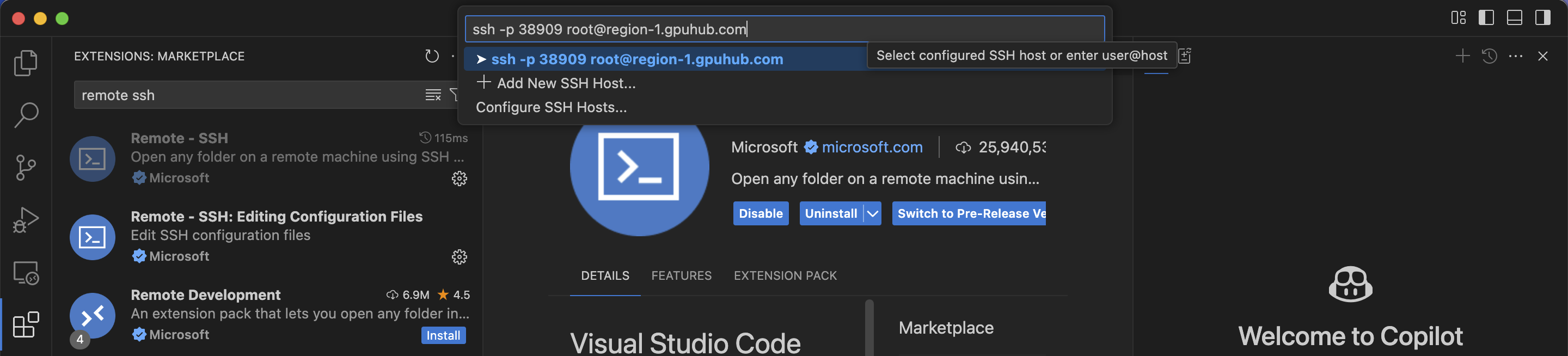 After pressing Enter, a prompt to customize the SSH config file may appear; you can **ignore it**. Simply press Enter again.
You may soon be presented with options to select the remote server's operating system, whether it's Windows, Linux, or Mac. **Please choose Linux**.
After pressing Enter, a prompt to customize the SSH config file may appear; you can **ignore it**. Simply press Enter again.
You may soon be presented with options to select the remote server's operating system, whether it's Windows, Linux, or Mac. **Please choose Linux**.
 Enter the password and wait for the SSH login to complete.
## 4. Select your code directory
The example code has already been uploaded to the instance's directory. If you haven't uploaded your resources yet, you can refer to the sections on [SCP for remote file](/data/upload-data#remote-copy-via-scp) copying or [JupyterLab](/data/upload-data#uploading-data-with-jupyterlab) to upload your code.
Recommendation: When developing code in VSCode, you can configure the appropriate interpreter based on the programming language you are using.
Enter the password and wait for the SSH login to complete.
## 4. Select your code directory
The example code has already been uploaded to the instance's directory. If you haven't uploaded your resources yet, you can refer to the sections on [SCP for remote file](/data/upload-data#remote-copy-via-scp) copying or [JupyterLab](/data/upload-data#uploading-data-with-jupyterlab) to upload your code.
Recommendation: When developing code in VSCode, you can configure the appropriate interpreter based on the programming language you are using.