> ## Documentation Index
> Fetch the complete documentation index at: https://docs.gpuhub.com/llms.txt
> Use this file to discover all available pages before exploring further.
# Invoice Application
> Currently, a receipt is sent automatically once your recharge is complete; if you also need a PDF invoice, just provide the details below and we’ll generate it for you.
## Receipt
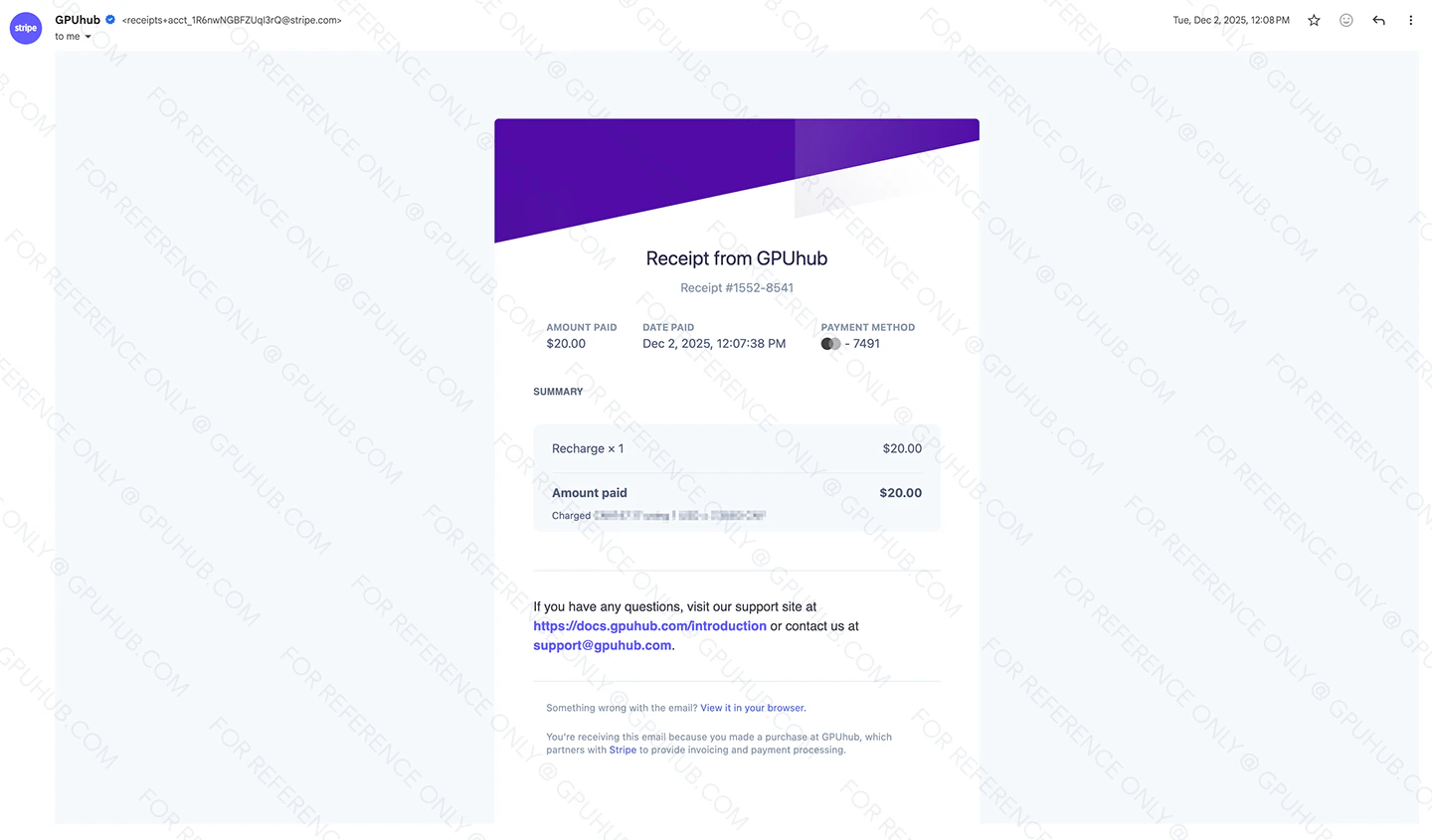
Once your recharge is successful in our console, the email address you provided will automatically receive a receipt—please keep an eye on your inbox.
Mail example:
 ## Invoice
The amount that has been invoiced DOES NOT SUPPORT withdrawal.
Recharge invoicing WON'T PROVIDE DETAILED invoice of billing later.
The portion of the payment covered by vouchers cannot be issued with an invoice.
### Invoice Type
We offer two invoicing methods:
The amount that has been successfully paid online through recharge. Online invoicing is available for all recharges.
The amount of your order that has already been consumed. Please contact our [customer service](mailto:support@gpuhub.com) team for application.
The differences between them are as follows:
1. When invoicing based on recharges, you can issue an invoice immediately after recharging and customize the invoicing amount (with a minimum of USD10 per invoice).
2. When invoicing based on bill amounts, When invoicing based on bill amounts, invoices can only be issued after the subscribed or purchased period has ended.
### Apply for Invoice Based on Recharge Amount
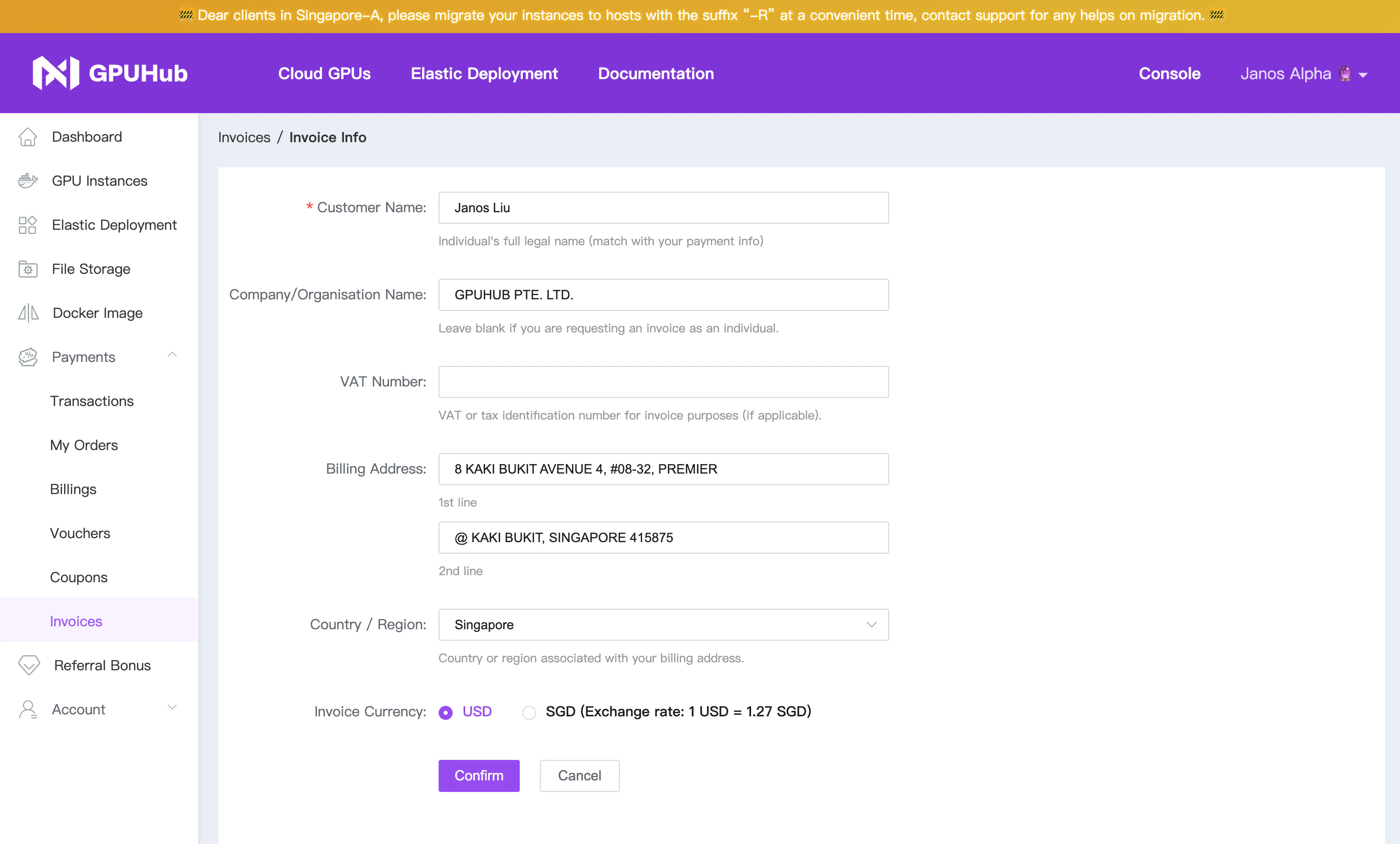
1. Please complete your account information in the console.
## Invoice
The amount that has been invoiced DOES NOT SUPPORT withdrawal.
Recharge invoicing WON'T PROVIDE DETAILED invoice of billing later.
The portion of the payment covered by vouchers cannot be issued with an invoice.
### Invoice Type
We offer two invoicing methods:
The amount that has been successfully paid online through recharge. Online invoicing is available for all recharges.
The amount of your order that has already been consumed. Please contact our [customer service](mailto:support@gpuhub.com) team for application.
The differences between them are as follows:
1. When invoicing based on recharges, you can issue an invoice immediately after recharging and customize the invoicing amount (with a minimum of USD10 per invoice).
2. When invoicing based on bill amounts, When invoicing based on bill amounts, invoices can only be issued after the subscribed or purchased period has ended.
### Apply for Invoice Based on Recharge Amount
1. Please complete your account information in the console.
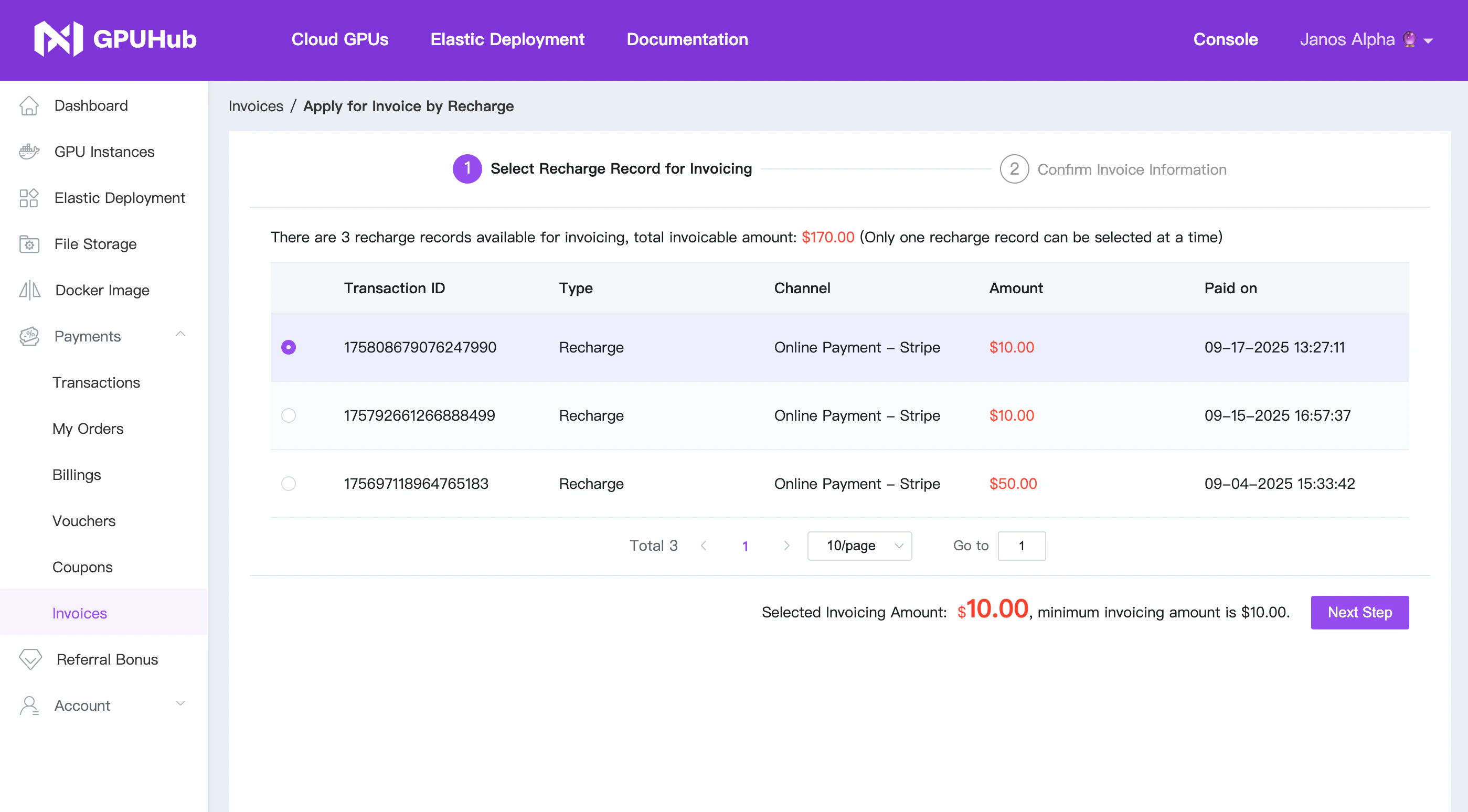
 2. Selet the transaction you want to invoice.
 3. Waiting for approval. We will process your invoice application **within 3 business days** and attach the PDF file to our email.
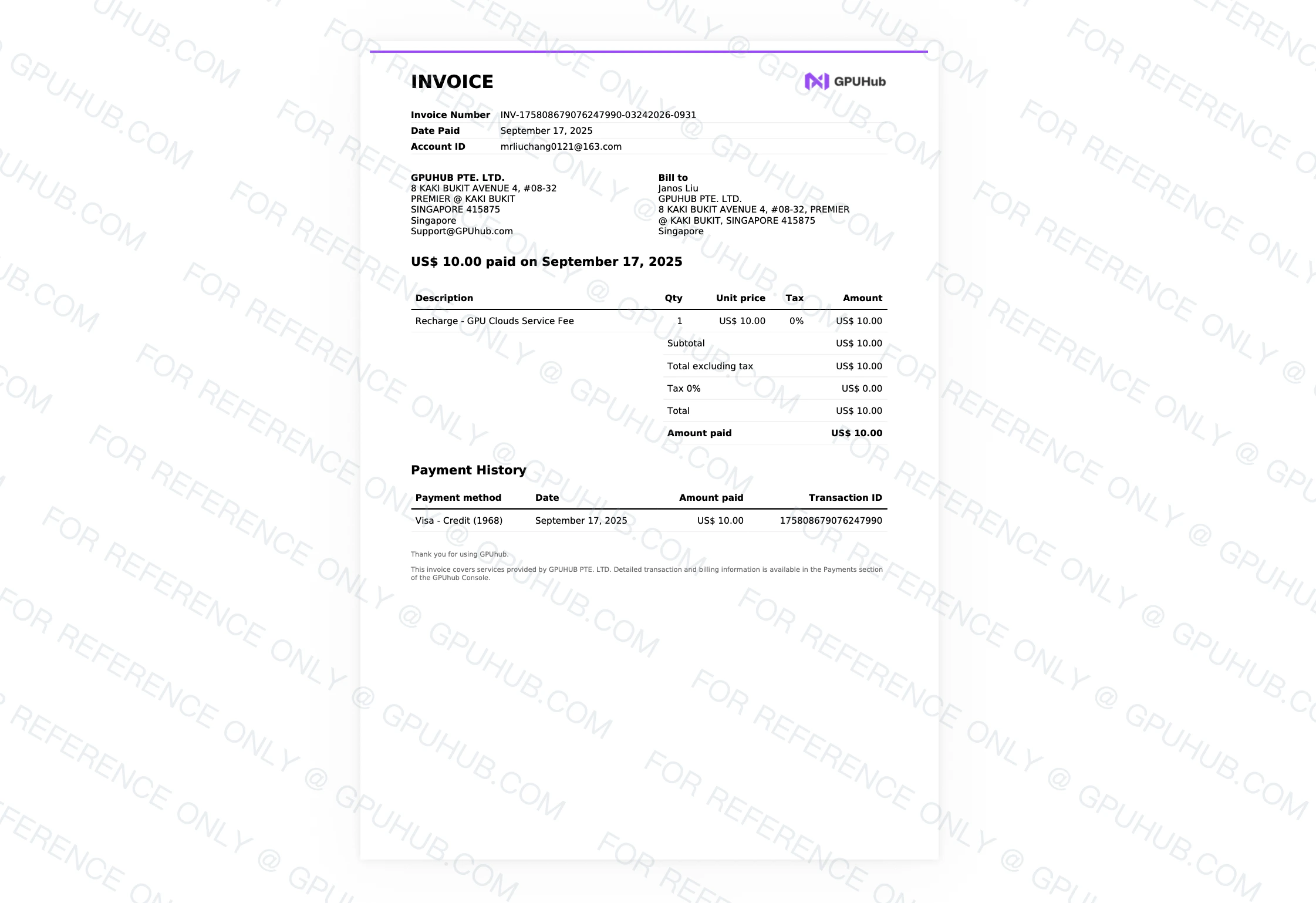
Invoice example:
3. Waiting for approval. We will process your invoice application **within 3 business days** and attach the PDF file to our email.
Invoice example: