> ## Documentation Index
> Fetch the complete documentation index at: https://docs.gpuhub.com/llms.txt
> Use this file to discover all available pages before exploring further.
# JupyterLab
> A guide to using JupyterLab in GPUhub, including its working directory and basic features, to help users work more effectively with data analysis and programming tasks.
 The working directory for JupyterLab is the `/root` directory, not the `/` system root directory.
If you need to access the root directory `/`, you can enter the terminal and use command-line operations.
## Basic Features of JupyterLab
### Accessing JupyterLab
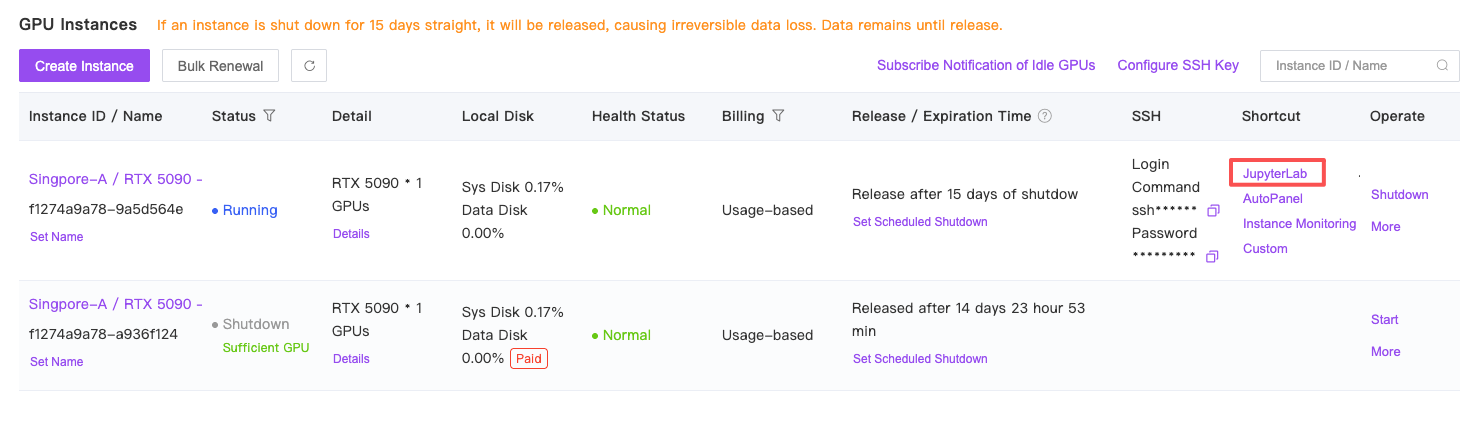
Console -> Container Instances -> Jupyterlab
The working directory for JupyterLab is the `/root` directory, not the `/` system root directory.
If you need to access the root directory `/`, you can enter the terminal and use command-line operations.
## Basic Features of JupyterLab
### Accessing JupyterLab
Console -> Container Instances -> Jupyterlab
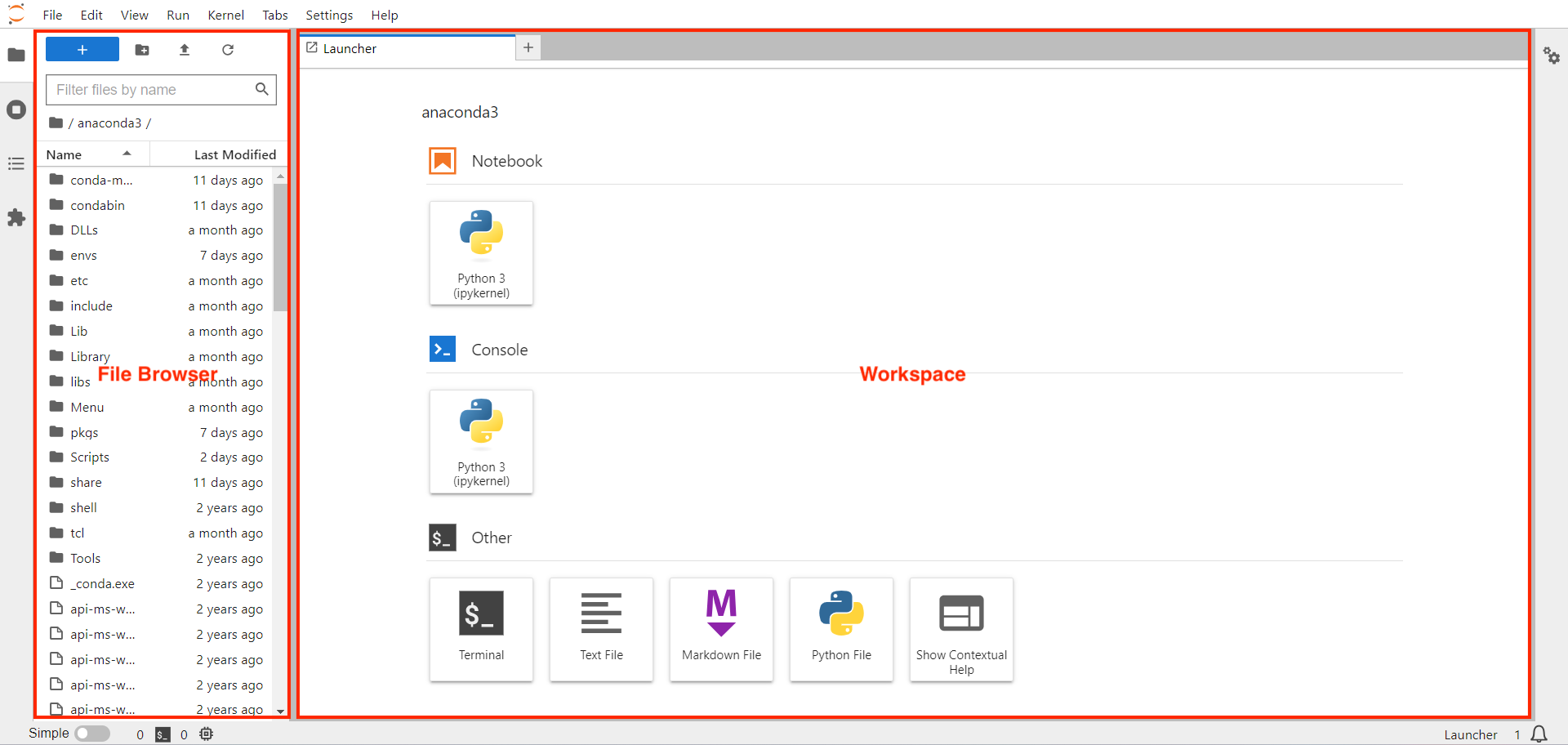
 ### JupyterLab Interface
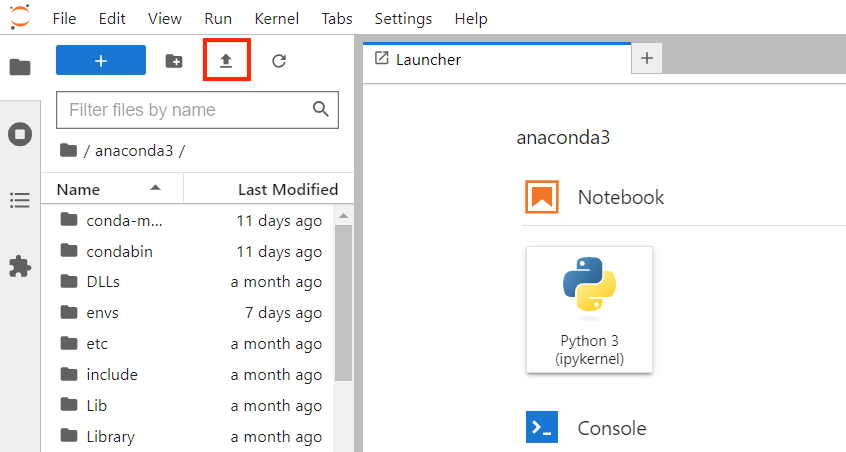
 ### Upload Data
 ### Working with Notebooks
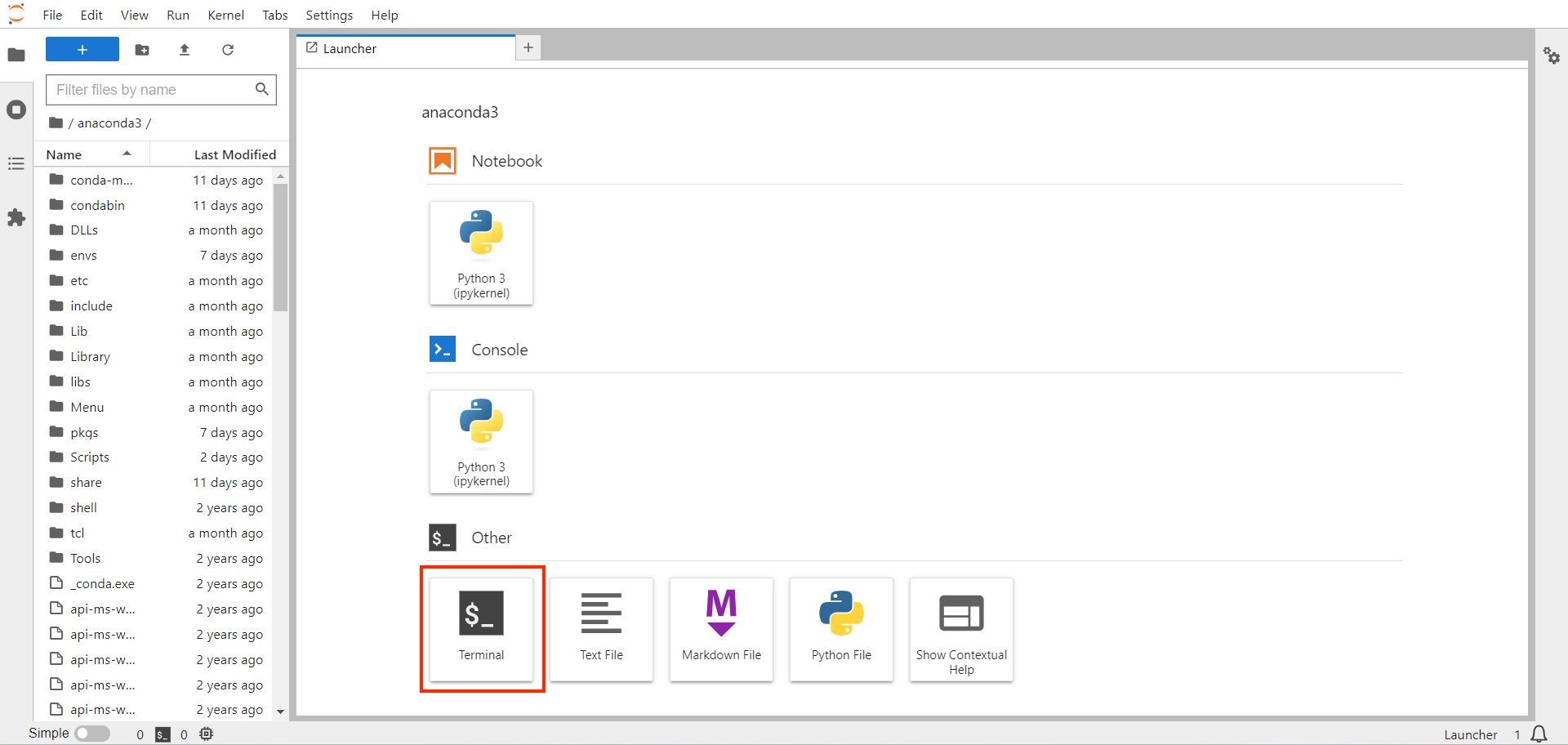
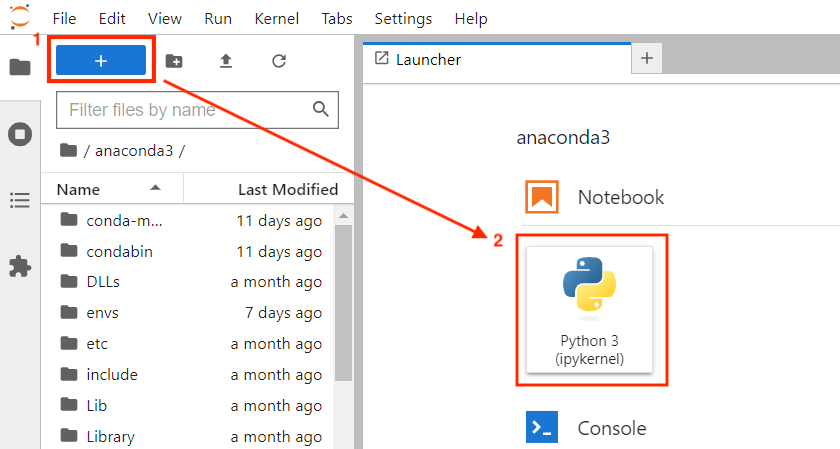 ### Open a New Terminal
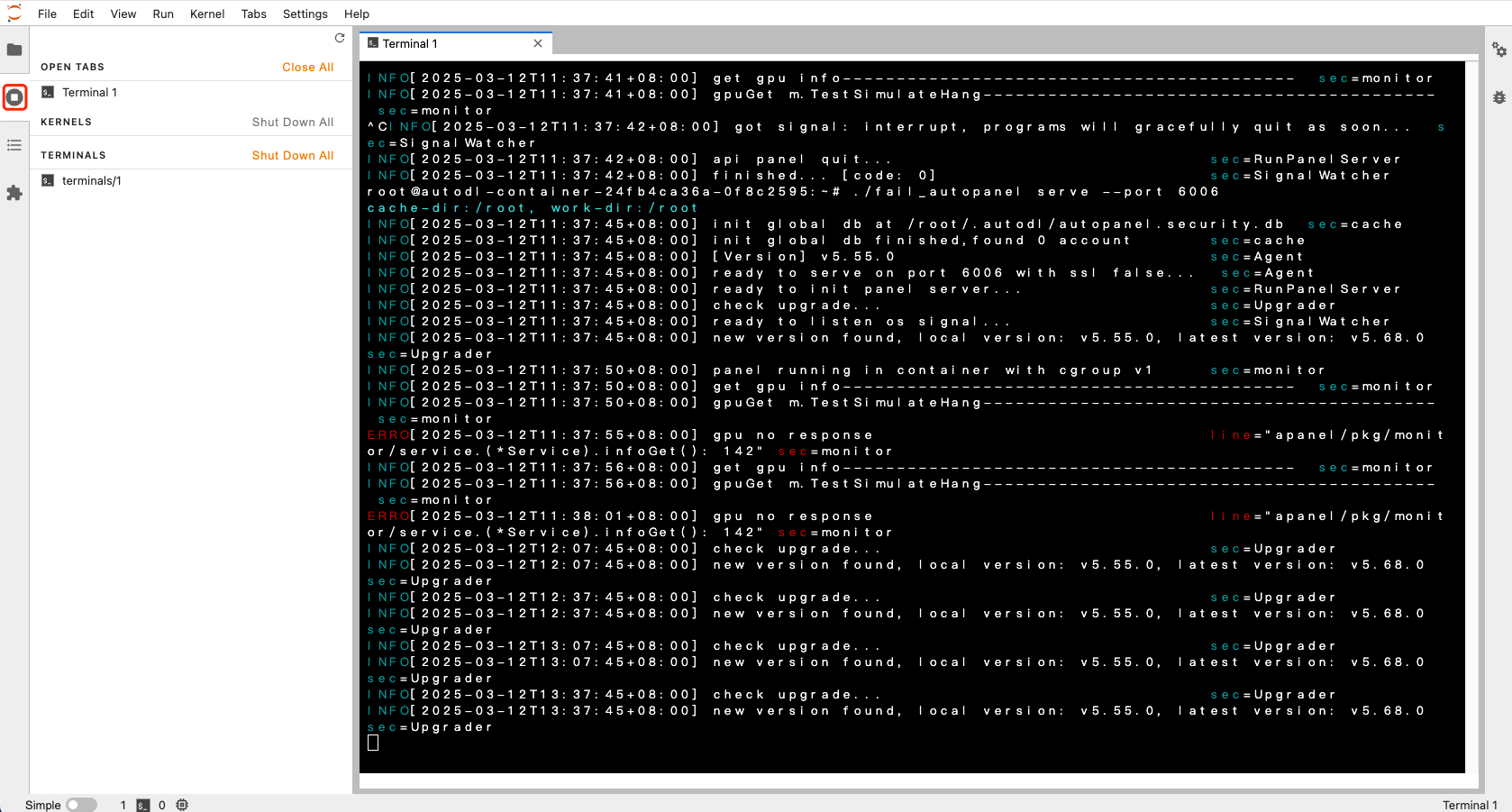
 ### Accessing Open Terminals or Notebooks
In JupyterLab, closing a terminal or Notebook tab does not terminate the process by default; it continues to run in the background.
### Accessing Open Terminals or Notebooks
In JupyterLab, closing a terminal or Notebook tab does not terminate the process by default; it continues to run in the background.
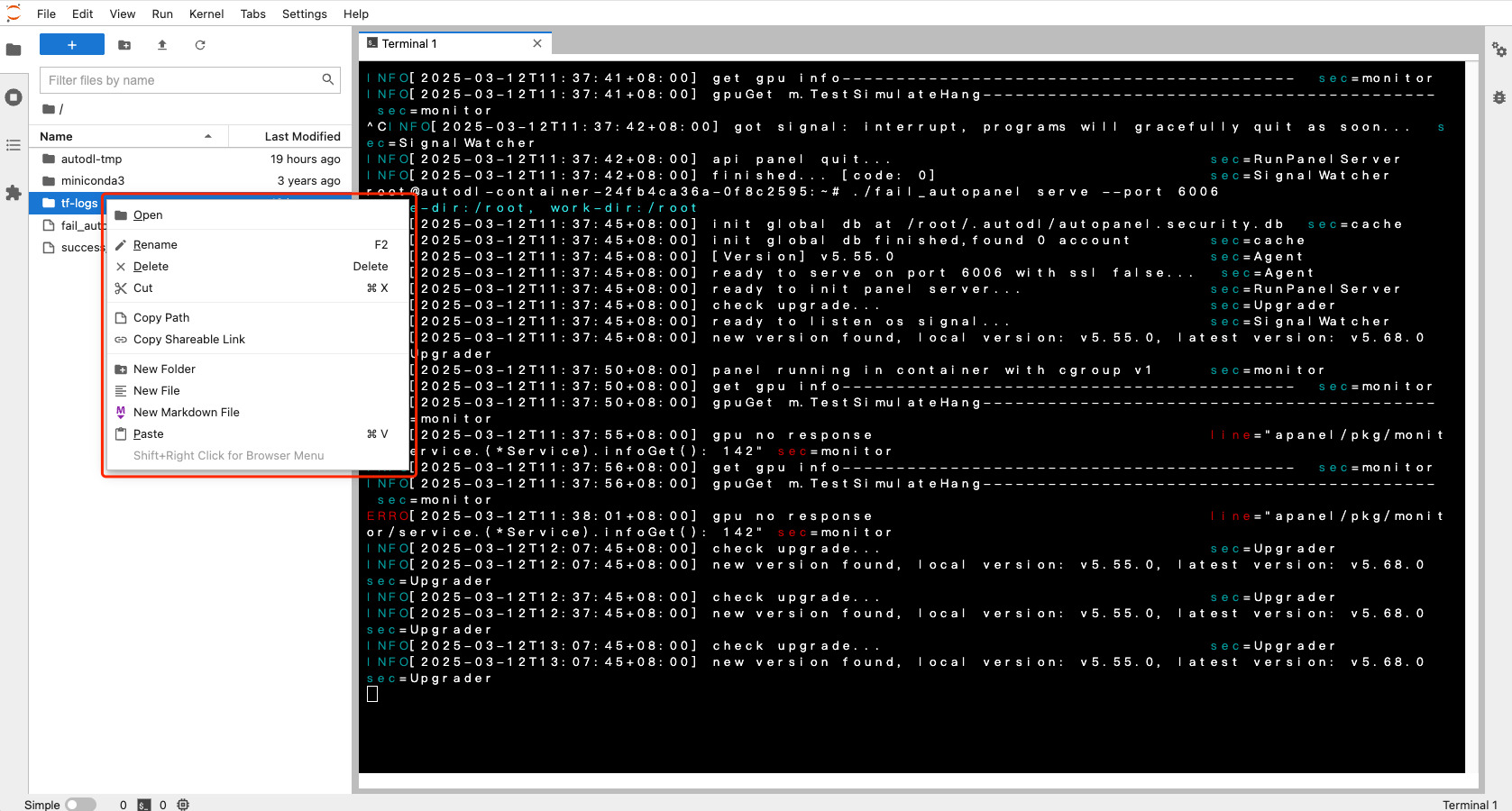
 ### File Management
🖰 Right-click folder/file to expand the menu.
### File Management
🖰 Right-click folder/file to expand the menu.
 ## Common Issues
Sometimes, users running programs in a Notebook may notice that after a while, **the Notebook's logs stop updating**.
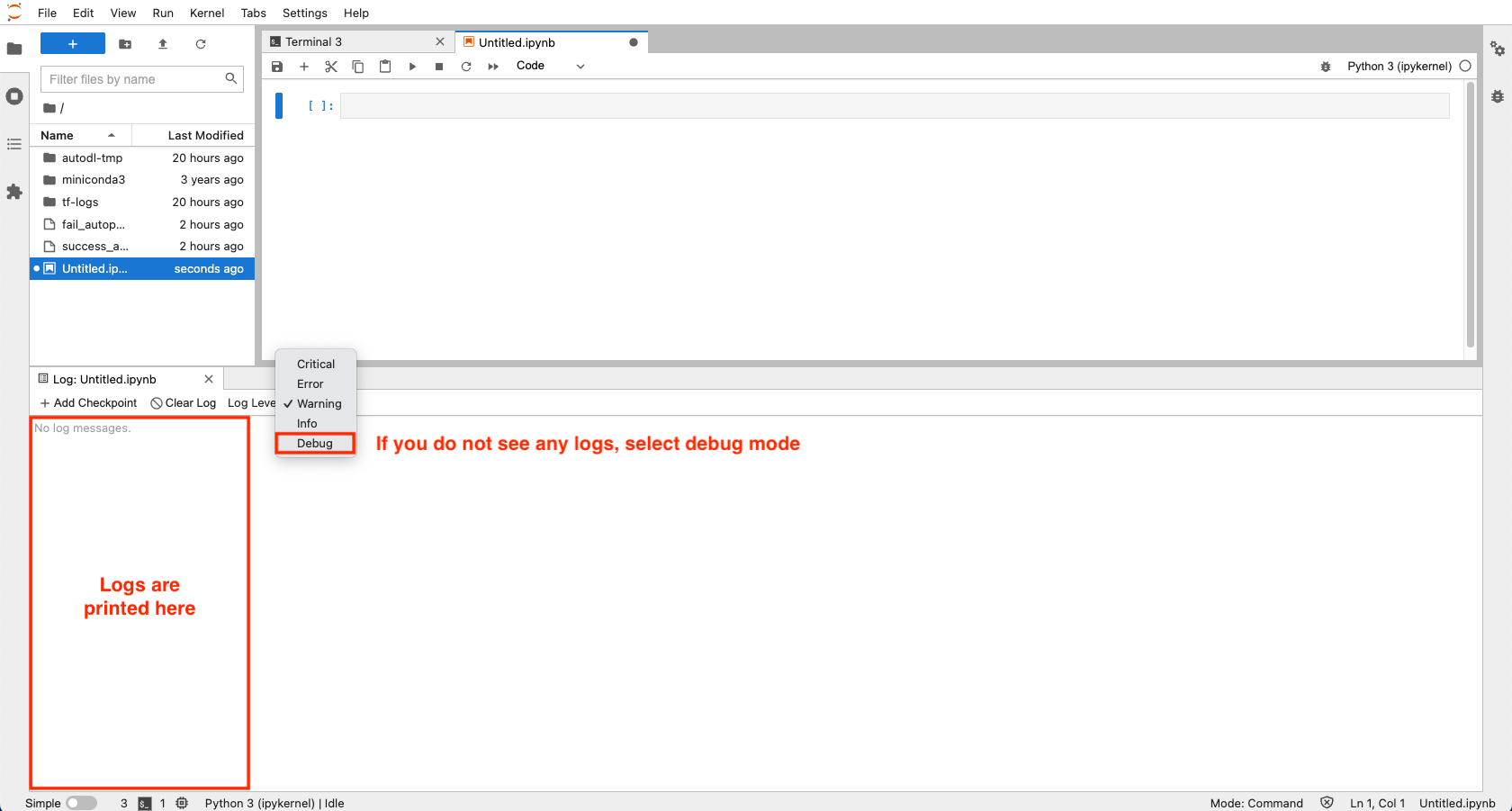
In such cases, you can use the **"Show Log Console"** feature to view the logs. Here's a demonstration of the process:
After executing the following piece of code, if you refresh the web page, you will find that the logs no longer update.
Open the Log Console.
## Common Issues
Sometimes, users running programs in a Notebook may notice that after a while, **the Notebook's logs stop updating**.
In such cases, you can use the **"Show Log Console"** feature to view the logs. Here's a demonstration of the process:
After executing the following piece of code, if you refresh the web page, you will find that the logs no longer update.
Open the Log Console.
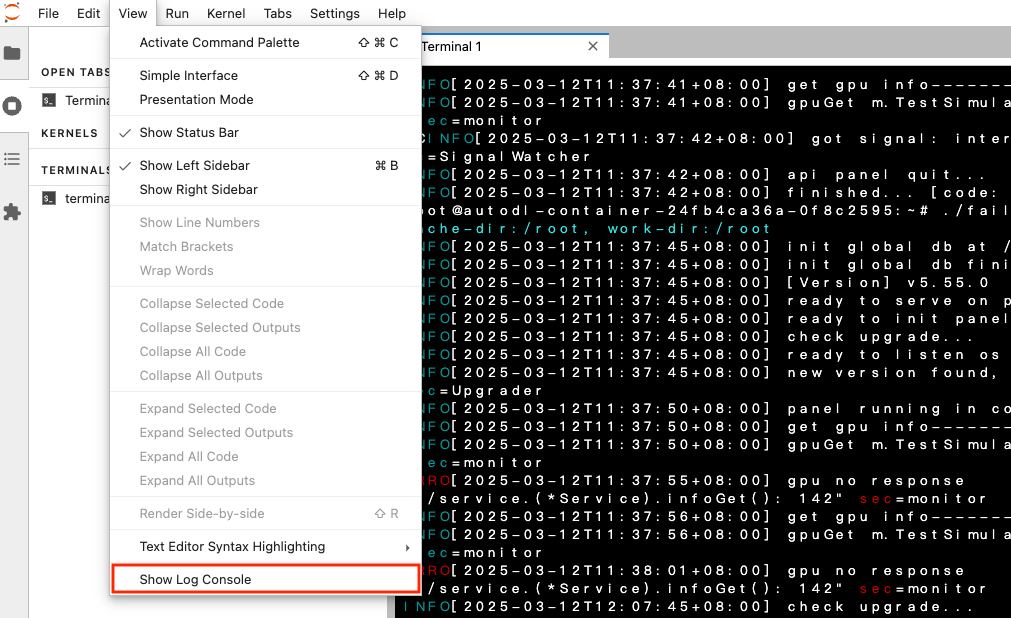 Check the logs and use Debug Mode as necessary.