> ## Documentation Index
> Fetch the complete documentation index at: https://docs.gpuhub.com/llms.txt
> Use this file to discover all available pages before exploring further.
# Run in Background
> Several ways to run your program as a daemon
If you remotely execute programs via SSH or SSH-based tools (such as XShell, PyCharm, VSCode, etc., which can be used for debugging, but for long-term execution, please run commands as daemons), be sure to run your programs as daemons to avoid termination due to SSH connection interruptions, which could cause unnecessary losses.
There are several ways to run your programs as daemons:
1. **`screen`**, a tool for multiplexing terminal sessions.
2. **`tmux`**, another commonly used tool (install with: `apt-get update && apt-get install -y tmux`).
3. **JupyterLab** Terminal.
4. **If you are using a Notebook**, refer to the bottom of the JupyterLab [documentation](/container-instance/jupyterlab) for issues related to log updates after network disconnections.
## Jupyterlab
The simplest way is to run it through the JupyterLab terminal. As long as JupyterLab does not restart (which is very rare), the terminal will continue to run, regardless of whether the local host is disconnected from the network or shut down.
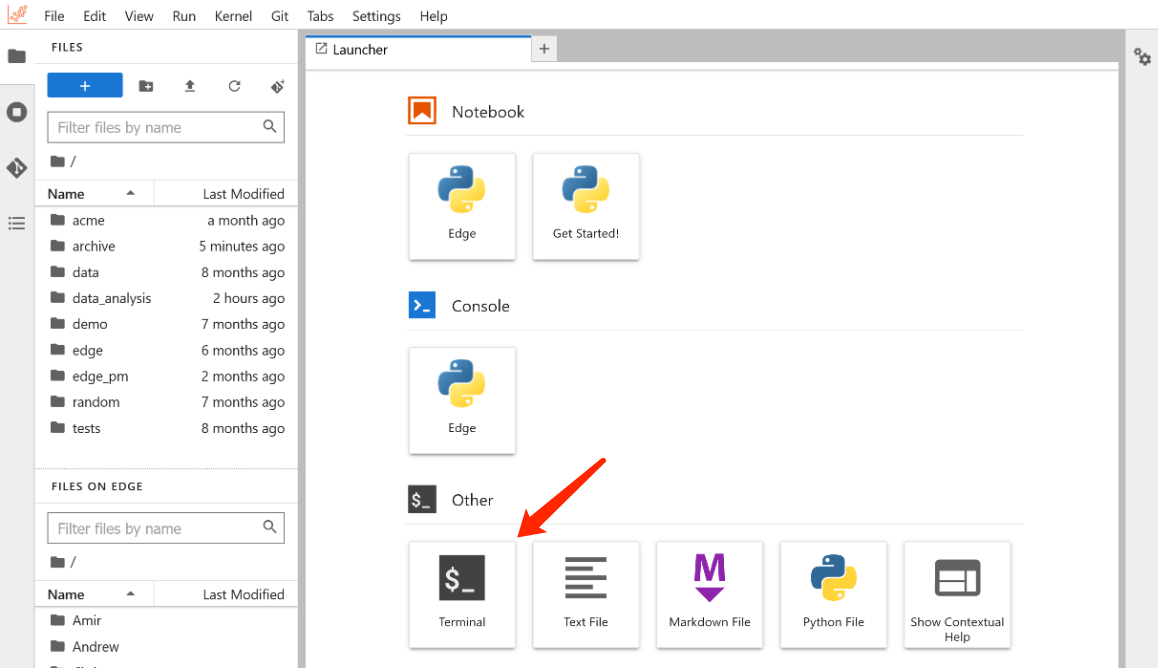 If the terminal displays nothing when opened, simply press the Enter key. When running code for an extended period in JupyterLab, it is highly recommended to redirect logs to prevent loss of intermediate logs in case of network disconnections. The method is as follows:
```bash bash theme={null}
# Redirect logs to the train.log file. Append this to your command: > train.log 2>&1
python xxx.py > train.log 2>&1
# View logs in real-time
tail -f train.log
```
## screen
To install `screen`, execute the following command in the terminal:
```bash bash theme={null}
apt-get update && apt-get install -y screen
```
### Creating a New Session
Execute the `screen` command in the terminal, and then press the Enter key in the resulting interface. You will see a terminal that appears identical to the previous one (in reality, there are now two).
Programs executed in this terminal are protected by this session. For example, you can run the following command here:
If the terminal displays nothing when opened, simply press the Enter key. When running code for an extended period in JupyterLab, it is highly recommended to redirect logs to prevent loss of intermediate logs in case of network disconnections. The method is as follows:
```bash bash theme={null}
# Redirect logs to the train.log file. Append this to your command: > train.log 2>&1
python xxx.py > train.log 2>&1
# View logs in real-time
tail -f train.log
```
## screen
To install `screen`, execute the following command in the terminal:
```bash bash theme={null}
apt-get update && apt-get install -y screen
```
### Creating a New Session
Execute the `screen` command in the terminal, and then press the Enter key in the resulting interface. You will see a terminal that appears identical to the previous one (in reality, there are now two).
Programs executed in this terminal are protected by this session. For example, you can run the following command here:
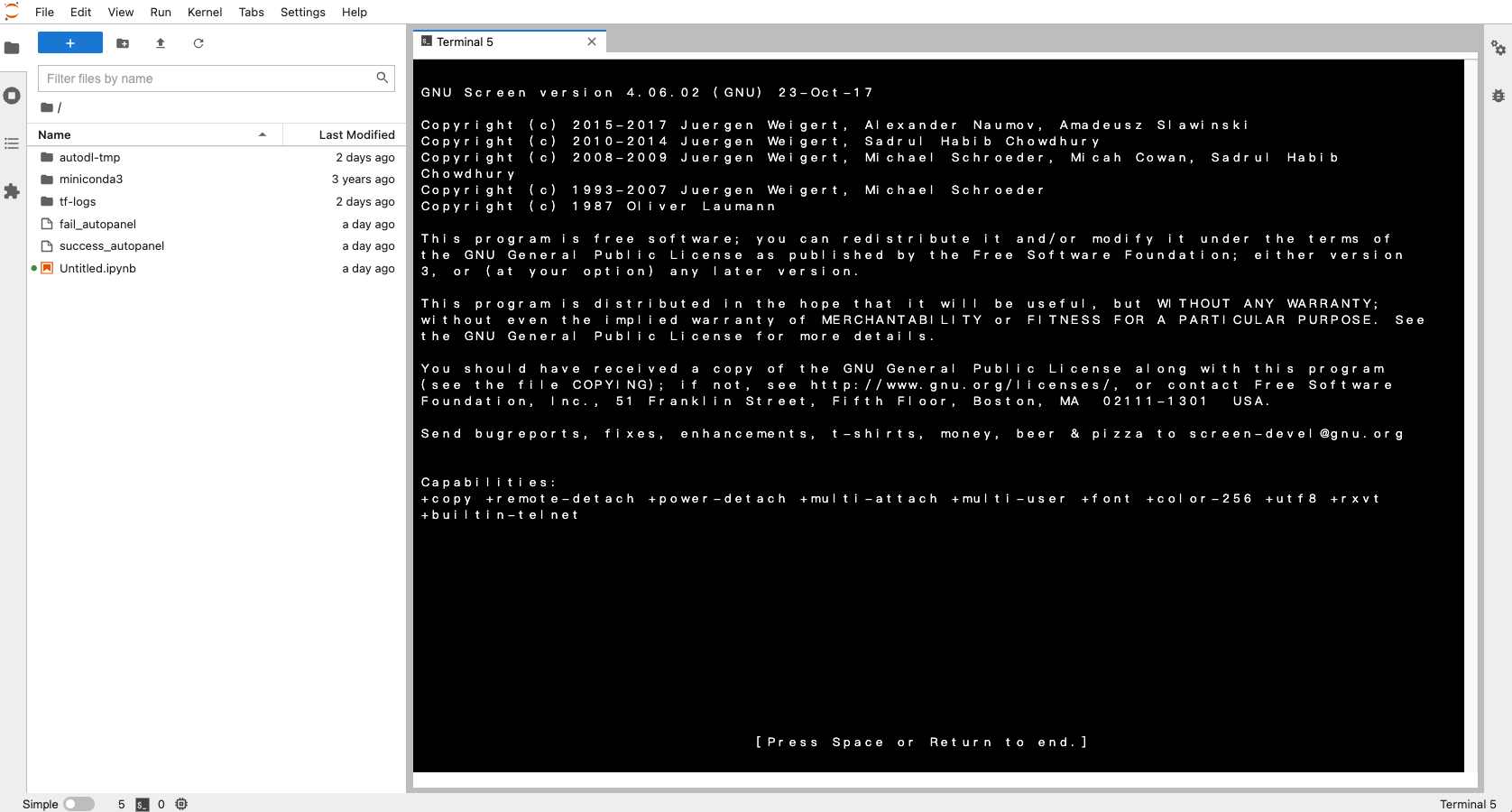 If you encounter chinese character encoding issues after opening a terminal with screen, execute the following command and then re-enter the screen terminal:
```bash bash theme={null}
echo "defencoding GBK" >> ~/.screenrc
echo "encoding UTF-8 GBK" >> ~/.screenrc
```
### Leaving a Session
When using the terminal opened with screen, pressing the shortcut keys **Ctrl + a + d** will detach you from the session and return you to the original terminal, displaying the message "detached." This means that the session is simply disconnected, not terminated.
### Re-entering a Session
Finding all detached sessions
`screen -ls`
This command will list all available screen sessions, including those that are currently detached. The output will look something like this:
```bash bash theme={null}
There are screens on:
12345.pts-0.hostname (Detached)
67890.pts-1.hostname (Attached)
2 Sockets in /var/run/screen/S-username.
```
Reattaching to a Specific Session
`screen -r `
For example, if the session ID is `12345`, you would run:
```bash bash theme={null}
screen -r 12345
```
After executing the above commands, you will find that the ping [www.huggingface.co](http://www.huggingface.co) command is still running. Therefore, you can run your program within a screen session, detach from the session, and then reattach to it when you need to check the logs.
For example:
```bash bash theme={null}
# Start a new screen session
screen
# Run the command
ping www.huggingface.co
# Detach from the session (Ctrl + a + d)
# Find the detached session
screen -ls
# Reattach to the session
screen -r 12345
# You will see that `ping www.huggingface.co` is still running.
```
### Exiting a Session
In the terminal opened with screen, use the shortcut key **Ctrl + d**. If there is a running program, first terminate it with **Ctrl + c**.
### Character Encoding Issues
Add the `-U` parameter to resolve character encoding problems.
For example:
```bash bash theme={null}
Creating a new session: screen -U
Reattaching to a session: screen -U -r 67890
```
If you encounter chinese character encoding issues after opening a terminal with screen, execute the following command and then re-enter the screen terminal:
```bash bash theme={null}
echo "defencoding GBK" >> ~/.screenrc
echo "encoding UTF-8 GBK" >> ~/.screenrc
```
### Leaving a Session
When using the terminal opened with screen, pressing the shortcut keys **Ctrl + a + d** will detach you from the session and return you to the original terminal, displaying the message "detached." This means that the session is simply disconnected, not terminated.
### Re-entering a Session
Finding all detached sessions
`screen -ls`
This command will list all available screen sessions, including those that are currently detached. The output will look something like this:
```bash bash theme={null}
There are screens on:
12345.pts-0.hostname (Detached)
67890.pts-1.hostname (Attached)
2 Sockets in /var/run/screen/S-username.
```
Reattaching to a Specific Session
`screen -r `
For example, if the session ID is `12345`, you would run:
```bash bash theme={null}
screen -r 12345
```
After executing the above commands, you will find that the ping [www.huggingface.co](http://www.huggingface.co) command is still running. Therefore, you can run your program within a screen session, detach from the session, and then reattach to it when you need to check the logs.
For example:
```bash bash theme={null}
# Start a new screen session
screen
# Run the command
ping www.huggingface.co
# Detach from the session (Ctrl + a + d)
# Find the detached session
screen -ls
# Reattach to the session
screen -r 12345
# You will see that `ping www.huggingface.co` is still running.
```
### Exiting a Session
In the terminal opened with screen, use the shortcut key **Ctrl + d**. If there is a running program, first terminate it with **Ctrl + c**.
### Character Encoding Issues
Add the `-U` parameter to resolve character encoding problems.
For example:
```bash bash theme={null}
Creating a new session: screen -U
Reattaching to a session: screen -U -r 67890
```