> ## Documentation Index
> Fetch the complete documentation index at: https://docs.gpuhub.com/llms.txt
> Use this file to discover all available pages before exploring further.
# SSH
> SSH (Secure Shell) Remote Connection
Windows Users: You can log in using the built-in PowerShell/CMD. For a better terminal experience, it is recommended to download and use the [Cmder](https://cmder.app/) tool, which is ready to use without installation after extraction. Alternatively, the [XShell](https://www.xshell.com/en/free-for-home-school/) tool is an even better option.
Mac Users: You can complete the SSH login using the system's built-in Terminal.
## SSH Authentication
After starting the instance, locate the SSH login command.
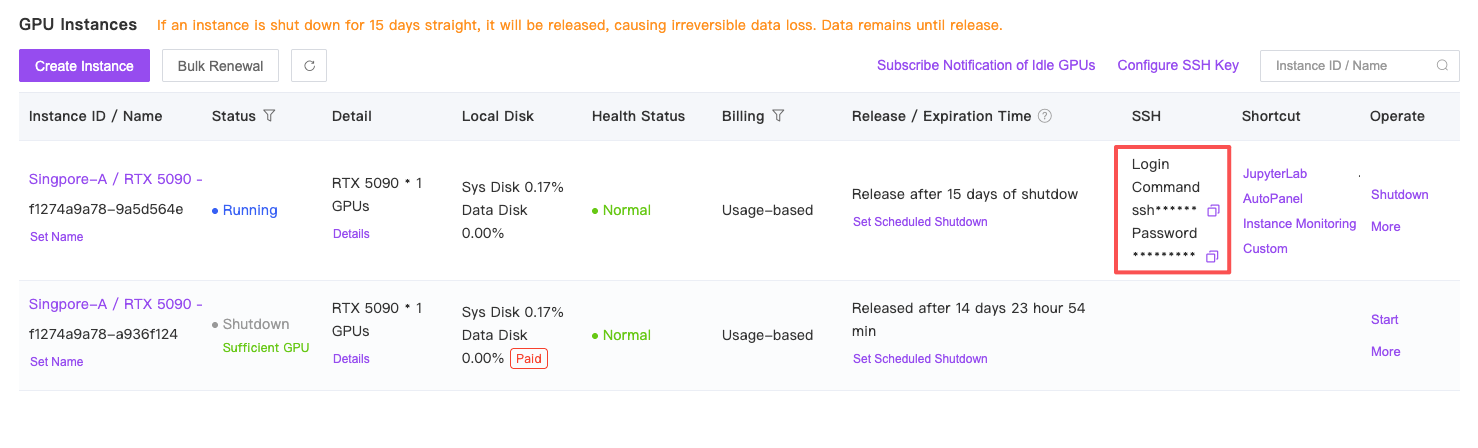 Copy your SSH login command, which in this demonstration is: `ssh -p 33150 root@connect.singapore-b.gpuhub.com`.
In this command, the meanings of the parameters are as follows:
* Username: root
* Host: connect.singapore-b.gpuhub.com
* Port Number: 33150
Enter the command in your local terminal and enter your password to log in. *(Note: The password will not display any characters; press Enter after correctly typing or pasting with the 🖰 right-click of your mouse.)*
Copy your SSH login command, which in this demonstration is: `ssh -p 33150 root@connect.singapore-b.gpuhub.com`.
In this command, the meanings of the parameters are as follows:
* Username: root
* Host: connect.singapore-b.gpuhub.com
* Port Number: 33150
Enter the command in your local terminal and enter your password to log in. *(Note: The password will not display any characters; press Enter after correctly typing or pasting with the 🖰 right-click of your mouse.)*
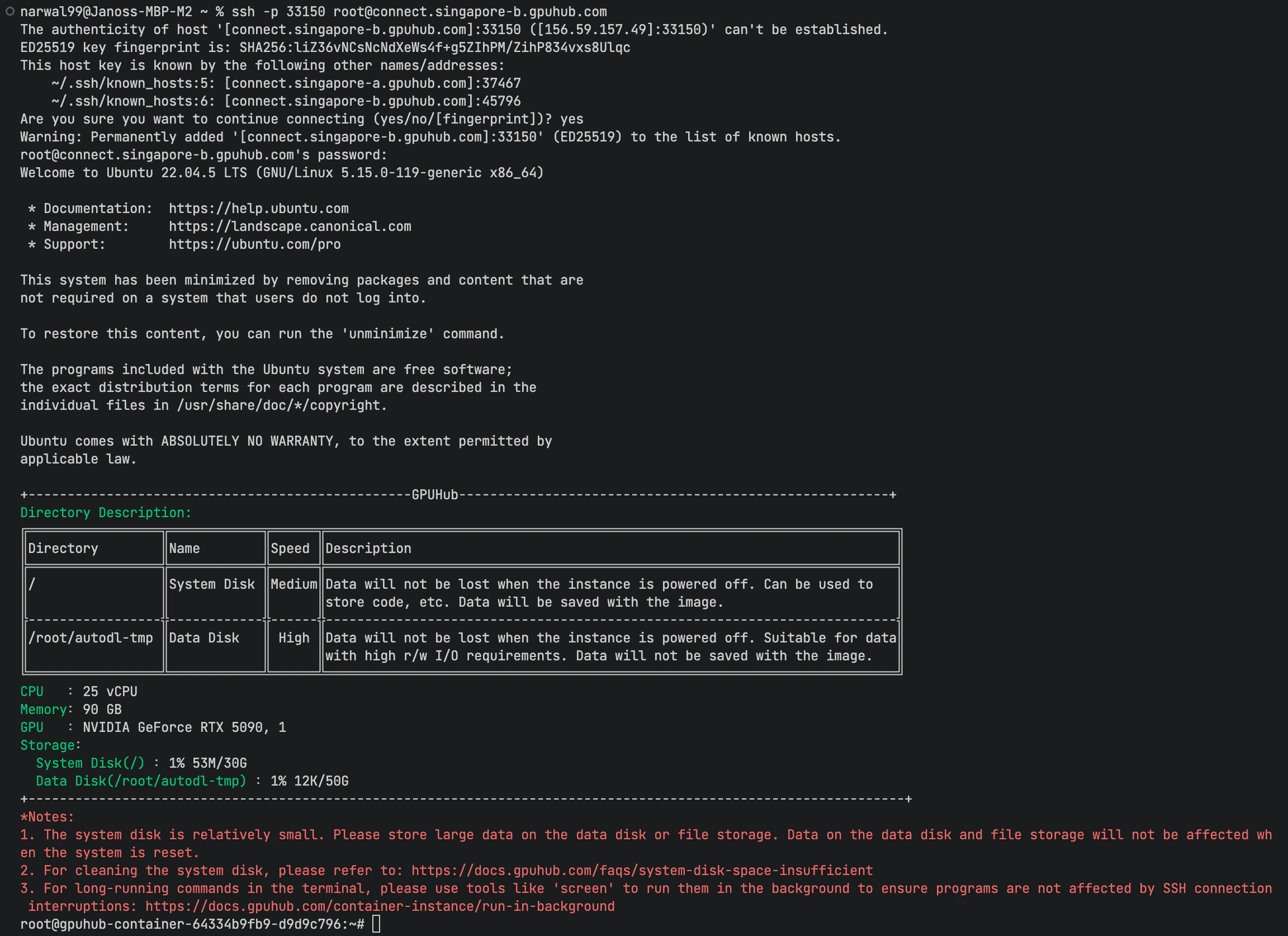 If you run a training program after logging in via SSH, use screen/tmux to start a daemon process to ensure that the program execution is not affected by SSH connection interruptions! For details on how to use screen, see the section on [Daemon Processes]().
## Passwordless Authentication
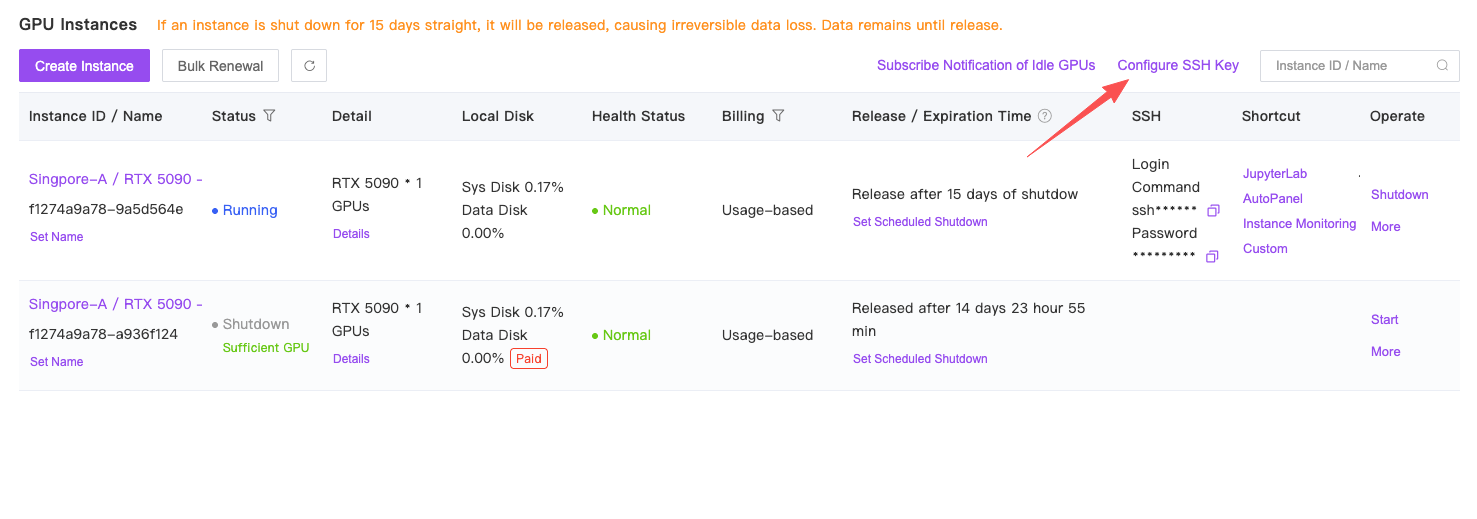
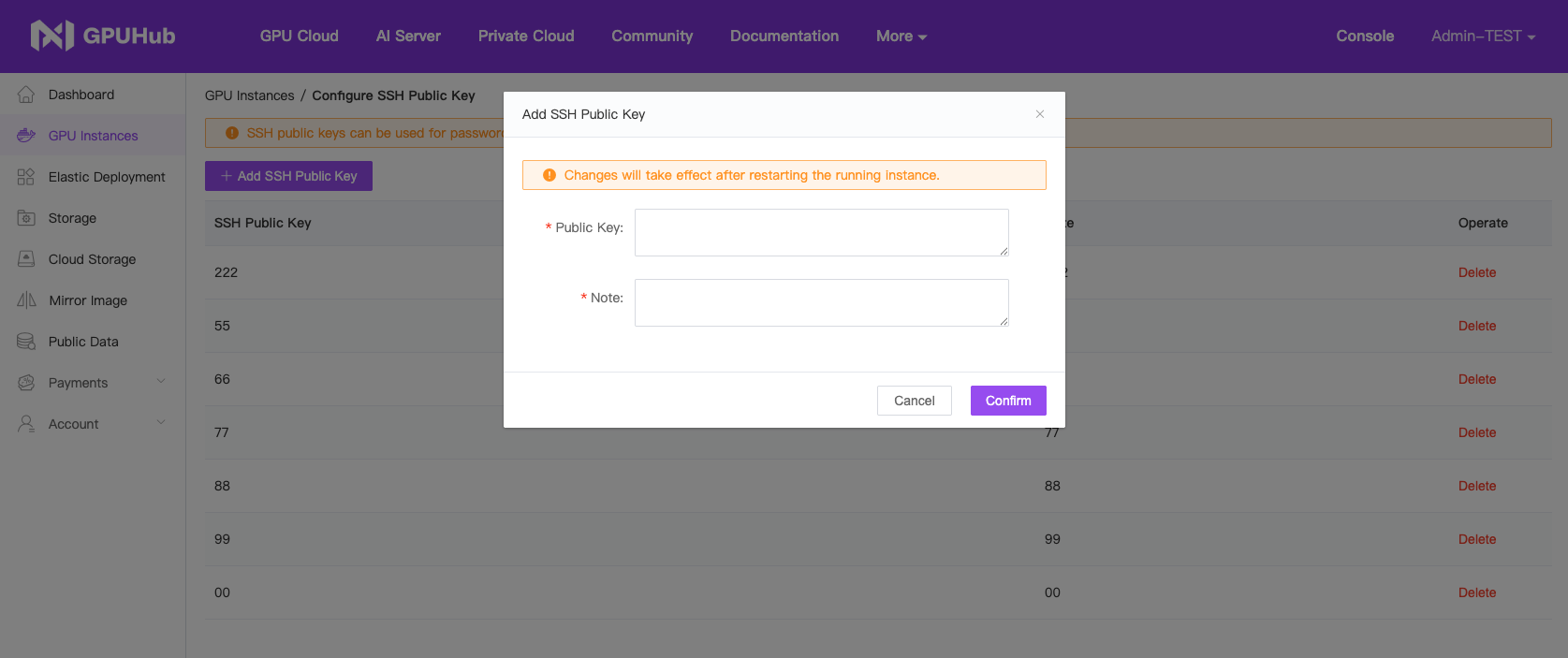
Access the SSH key login settings from **Console -> Instances** to set up your public key for password-free login. For key generation instructions, see the provided link: [4.3 Git on the Server - Generating Your SSH Public Key](https://git-scm.com/book/en/v2/Git-on-the-Server-Generating-Your-SSH-Public-Key)
If you run a training program after logging in via SSH, use screen/tmux to start a daemon process to ensure that the program execution is not affected by SSH connection interruptions! For details on how to use screen, see the section on [Daemon Processes]().
## Passwordless Authentication
Access the SSH key login settings from **Console -> Instances** to set up your public key for password-free login. For key generation instructions, see the provided link: [4.3 Git on the Server - Generating Your SSH Public Key](https://git-scm.com/book/en/v2/Git-on-the-Server-Generating-Your-SSH-Public-Key)