> ## Documentation Index
> Fetch the complete documentation index at: https://docs.gpuhub.com/llms.txt
> Use this file to discover all available pages before exploring further.
# File Storage
> Store your important data and code in here! Including models, datasets, and more — and access them across all your instances.
File storage is a network-shared storage that can be mounted to different instances within the same region
`1` Shared across instances with multi-point read/write capabilities, unaffected by instance release.
`2` High data reliability due to multiple redundant copies on the storage backend (Local Data Disks have no redundancy and are more prone to disk failures).
Generally lower IO performance.
File Storage does not have the ability to quickly synchronize data between different regions.
## Recommendation
* **Store your important data and code in file storage** for shared access and high reliability. For training data requiring high IO performance, copy it to the local data disk of the instance to achieve better IO performance. This approach balances convenience, safety, and performance.
## Initialization
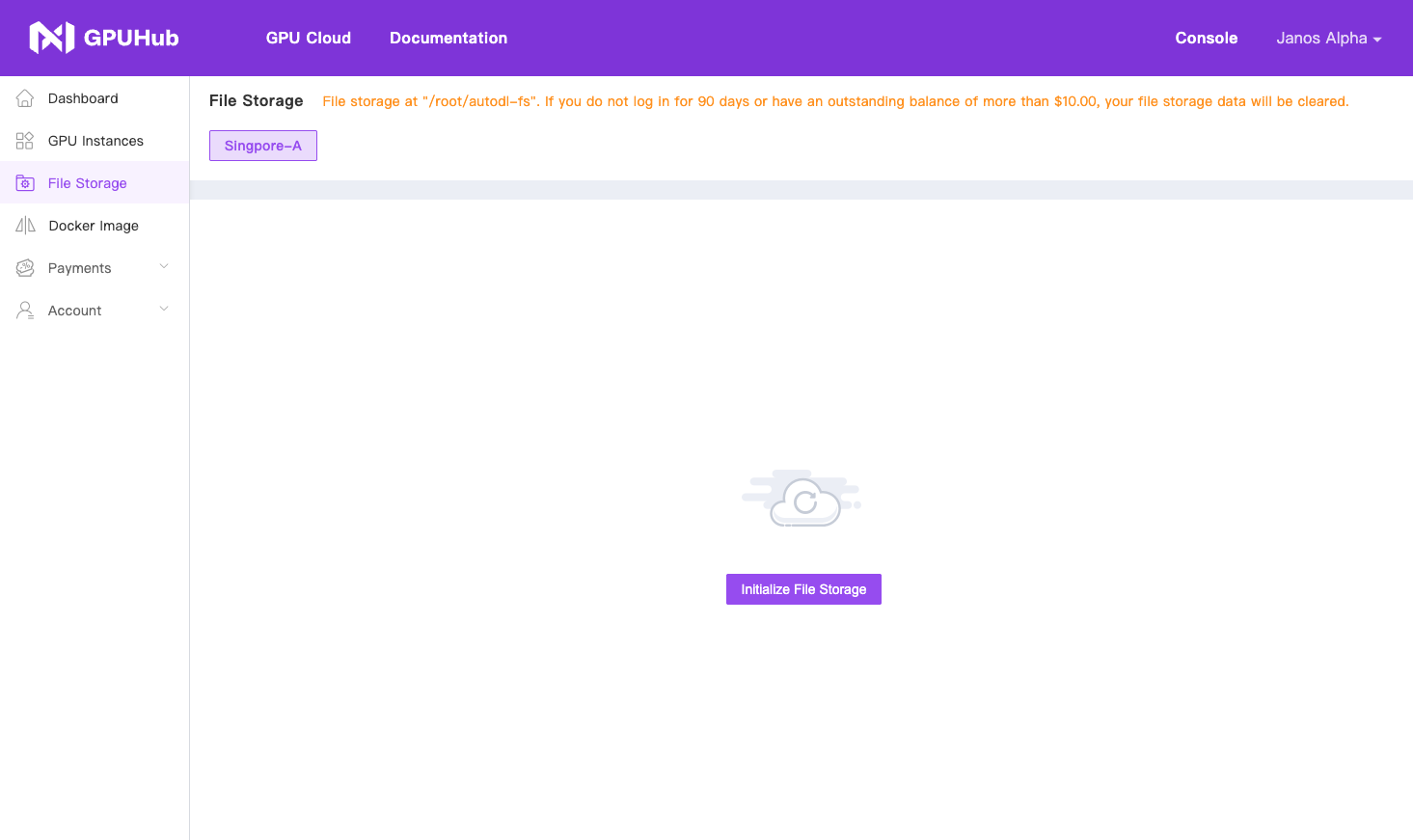
Enter the Console -> File Storage menu, and initialize the file storage for the corresponding region. After creating an instance in that region and starting it, the file storage will be mounted to the `/root/autodl-fs` directory of the instance.
```bash theme={null}
/root/autodl-fs
```
 ## Not Mounted
1. Check whether file storage is supported for instances in the region.
2. Check whether the file storage interface has been initialized for the region.
3. If the instance was started before the initialization of file storage, you need to **restart the instance**.
4. Check the **mount status** in **Account → Settings → File Storage**. If the status is "Unmounted", remount the file storage and then restart the instance.
5. For instances created by a sub-account, verify that the sub-account has file storage permissions in **Account → Sub-accounts → Configure Permissions → File Storage**.
6. If the file storage still cannot be mounted, contact customer [support](mailto:support@gpuhub.com) for assistance.
## Cache Cleanup
If a web upload is interrupted or files are deleted in JupyterLab, cache files or trash may be generated, occupying file storage space.
### Solution 1: From Console
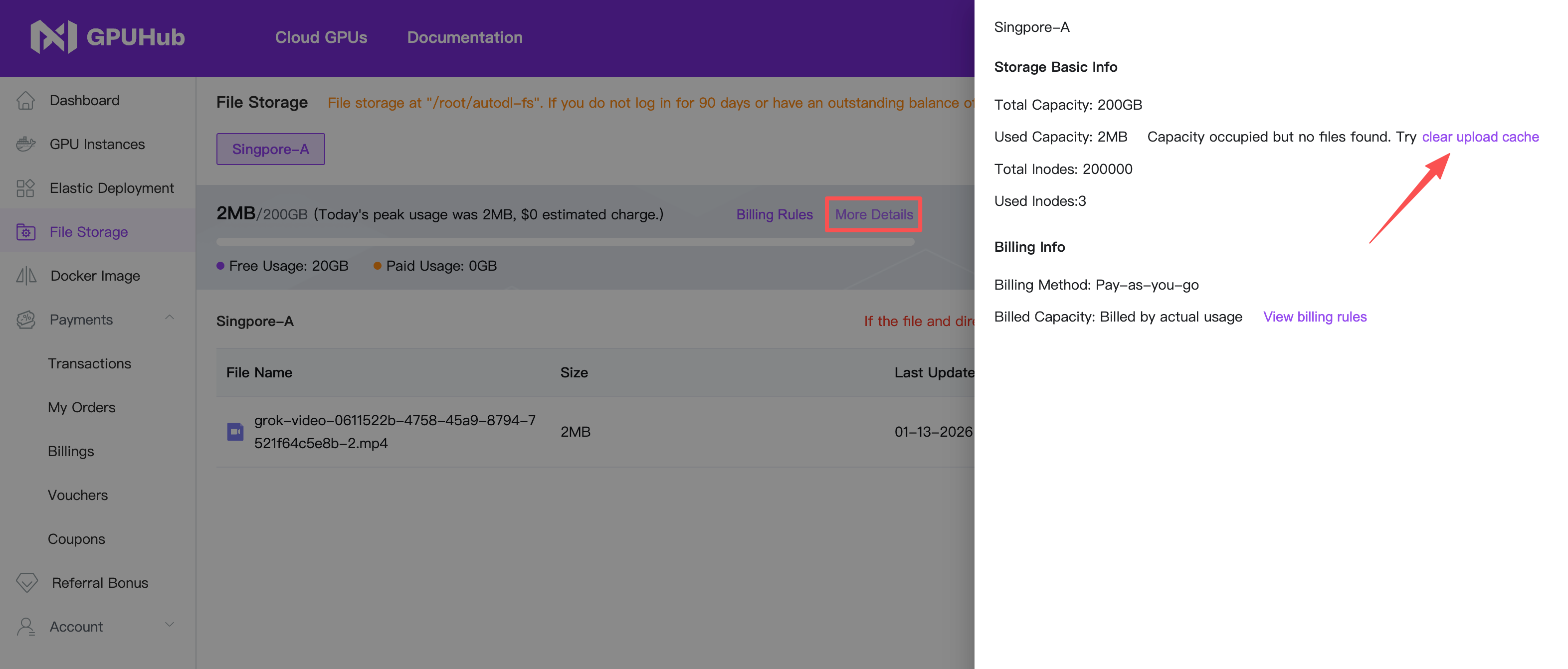
File Storage → More Details → Clean Upload Cache
## Not Mounted
1. Check whether file storage is supported for instances in the region.
2. Check whether the file storage interface has been initialized for the region.
3. If the instance was started before the initialization of file storage, you need to **restart the instance**.
4. Check the **mount status** in **Account → Settings → File Storage**. If the status is "Unmounted", remount the file storage and then restart the instance.
5. For instances created by a sub-account, verify that the sub-account has file storage permissions in **Account → Sub-accounts → Configure Permissions → File Storage**.
6. If the file storage still cannot be mounted, contact customer [support](mailto:support@gpuhub.com) for assistance.
## Cache Cleanup
If a web upload is interrupted or files are deleted in JupyterLab, cache files or trash may be generated, occupying file storage space.
### Solution 1: From Console
File Storage → More Details → Clean Upload Cache
 ### Solution 2: From Terminal
Navigate to `/root/autodl-fs`, use `ls -alh` to view hidden files, then permanently delete them with `rm`.
### Disk Full Error
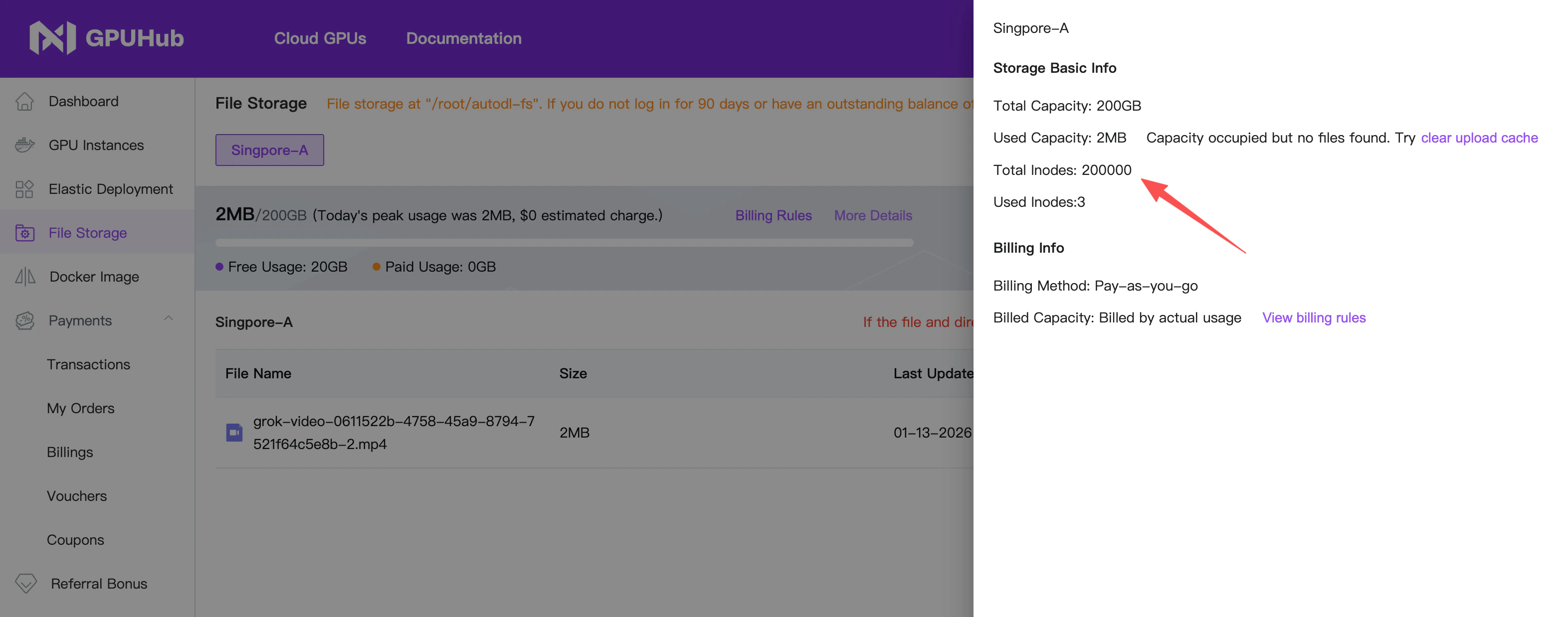
A "disk full" error may unexpectedly occur even when there is sufficient storage space, if the number of files (inodes) exceeds 200,000.
File storage has an **inode limit of 200,000**. Since a large number of small files significantly impacts read/write performance, we recommend compressing files before storing them in file storage, and keeping small files on the data disk instead.
You can monitor your inode usage at any time in: File Storage → More Details.
### Solution 2: From Terminal
Navigate to `/root/autodl-fs`, use `ls -alh` to view hidden files, then permanently delete them with `rm`.
### Disk Full Error
A "disk full" error may unexpectedly occur even when there is sufficient storage space, if the number of files (inodes) exceeds 200,000.
File storage has an **inode limit of 200,000**. Since a large number of small files significantly impacts read/write performance, we recommend compressing files before storing them in file storage, and keeping small files on the data disk instead.
You can monitor your inode usage at any time in: File Storage → More Details.
 ## Billing
For details on data disk billing, please refer to the [pricing](/billing-recharge/billing#file-storage).
## Data Cleanup
If the account has not logged in for three consecutive months or has an outstanding fee of more than USD10.00, the data in the file storage will be cleared.
## Billing
For details on data disk billing, please refer to the [pricing](/billing-recharge/billing#file-storage).
## Data Cleanup
If the account has not logged in for three consecutive months or has an outstanding fee of more than USD10.00, the data in the file storage will be cleared.