> ## Documentation Index
> Fetch the complete documentation index at: https://docs.gpuhub.com/llms.txt
> Use this file to discover all available pages before exploring further.
# GPU Memory Not Released
> XXX
First, use the `nvidia-smi` command to check the GPU usage. If you find that the program has already terminated but there is still GPU memory occupied, it indicates that a residual process is holding the memory. You can release it as follows:
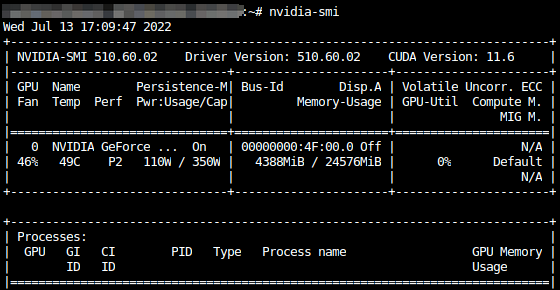 From the screenshot, it can be seen that a program is occupying 4388MiB of GPU memory. To release the memory, first identify the process ID:
Use the `ps -ef` command.
From the screenshot, it can be seen that a program is occupying 4388MiB of GPU memory. To release the memory, first identify the process ID:
Use the `ps -ef` command.
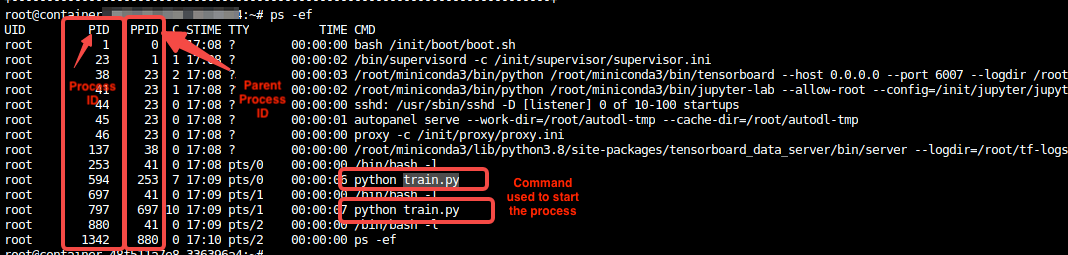 You can see three important columns: PID, PPID, and CMD, which represent the process ID, parent process ID, and the command used to start the process, respectively.
By examining the command, you can determine which processes were started by your program. For example, `python train.py` in the screenshot is a process I started, while others are system processes or unrelated to GPU memory usage.
* Next, terminate the process:
* From the screenshot, the process IDs for `python train.py` are `594` and `797`. You can use the `kill -9 594 797` command to end these processes. However, when many processes occupy GPU memory, especially in multi-GPU parallel scenarios, this method can be cumbersome.
* Here is a more powerful way to terminate processes:
* Using ps `-ef`, you can see that all my processes contain the keyword `train` (and other unrelated system processes do not, to avoid accidental termination). You can filter your processes using the `grep` command, for example:
You can see three important columns: PID, PPID, and CMD, which represent the process ID, parent process ID, and the command used to start the process, respectively.
By examining the command, you can determine which processes were started by your program. For example, `python train.py` in the screenshot is a process I started, while others are system processes or unrelated to GPU memory usage.
* Next, terminate the process:
* From the screenshot, the process IDs for `python train.py` are `594` and `797`. You can use the `kill -9 594 797` command to end these processes. However, when many processes occupy GPU memory, especially in multi-GPU parallel scenarios, this method can be cumbersome.
* Here is a more powerful way to terminate processes:
* Using ps `-ef`, you can see that all my processes contain the keyword `train` (and other unrelated system processes do not, to avoid accidental termination). You can filter your processes using the `grep` command, for example:
 Next, obtain the process IDs using the `awk` command. The `awk` command is complex, but you only need to remember the following command:
 Finally, use the kill command to terminate the processes. The complete command is: `ps -ef | grep train | awk '{print $2}' | xargs kill -9`
 The output may include an error message like "No such process", which can be ignored. This occurs because the `grep train` command itself generates a process that gets filtered out.
 More Explanation:
In Linux commands, the `|` symbol is called a pipe. Its function is to use the output of one command as the input for the next command (usually stdout; stderr requires separate handling). Pipes are very useful in many scenarios. For example, if a directory contains tens of thousands of files, but only one is a `.txt` file while the others are images, manually searching through the list generated by `ls` would be very cumbersome. Instead, you can use: `ls | grep "\.txt$"`
More Explanation:
In Linux commands, the `|` symbol is called a pipe. Its function is to use the output of one command as the input for the next command (usually stdout; stderr requires separate handling). Pipes are very useful in many scenarios. For example, if a directory contains tens of thousands of files, but only one is a `.txt` file while the others are images, manually searching through the list generated by `ls` would be very cumbersome. Instead, you can use: `ls | grep "\.txt$"`