> ## Documentation Index
> Fetch the complete documentation index at: https://docs.gpuhub.com/llms.txt
> Use this file to discover all available pages before exploring further.
# System Disk Space Insufficient
> First, identify which directory is occupying the system disk space.
If you are unsure what the system disk is, please refer to the help [documentation](/container-instance/overview).
You can check the usage of the system disk and data by running the command source `~/.bashrc`.
The following two directories can be directly deleted without affecting system operation, so **start by removing them**. If this does not free up space, proceed to the next steps:
```bash theme={null}
du -sh /root/miniconda3/pkgs/ && rm -rf /root/miniconda3/pkgs/* # Conda's historical packages
du -sh /root/.local/share/Trash && rm -rf /root/.local/share/Trash # JupyterLab's trash
```
The following directories may occupy significant space, but you should clean them based on your specific situation:
```bash theme={null}
du -sh /tmp/
du -sh /root/.cache
```
## Normal Cleanup Steps
First, check the disk space used by files and directories. Folders under the system/root directory generally do not occupy significant disk space, so you should mainly focus on the directories or files that you have created.
### File Size
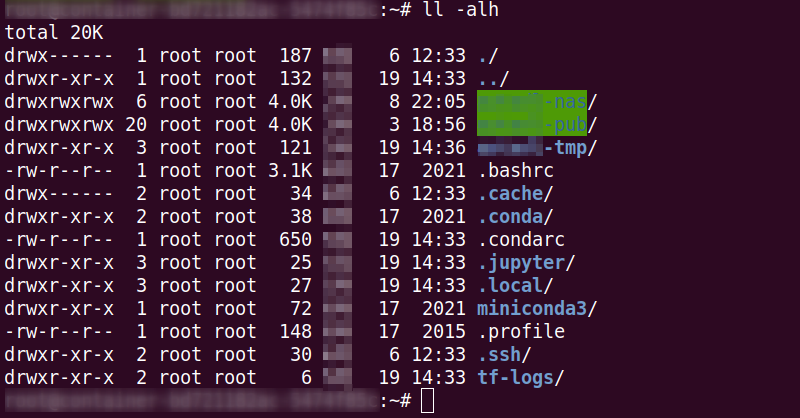
Use the ls -alh command to check the sizes of files such as `.bashrc` and `.profile` in the example below. However, **the size displayed for directories is only the size of the directory itself, not the total size of all files within the directory**.
 ### Directory Size
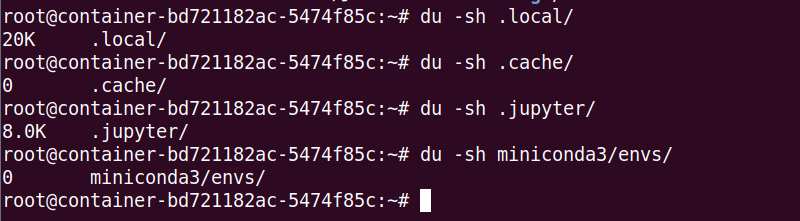
Use the `du -sh xxx` command to recursively calculate the total size of all files within a directory.
### Directory Size
Use the `du -sh xxx` command to recursively calculate the total size of all files within a directory.
 ### Deletion
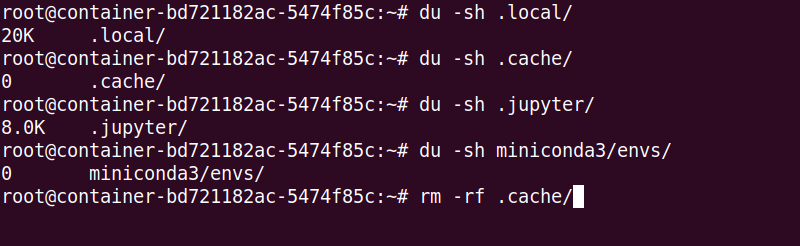
Use `rm -rf xxx` to delete files or directories and free up space.
### Deletion
Use `rm -rf xxx` to delete files or directories and free up space.
 ### Special Folders Not Occupying System Disk Space
`/root/autodl-tmp`
`/root/autodl-nas`
`/root/autodl-pub`
`/root/autodl-fs`
## Clearing All Data
If you no longer need the data, you can clear everything by clicking "Reset System" in the "More" operations of the instance. This will clear the system disk.
### Special Folders Not Occupying System Disk Space
`/root/autodl-tmp`
`/root/autodl-nas`
`/root/autodl-pub`
`/root/autodl-fs`
## Clearing All Data
If you no longer need the data, you can clear everything by clicking "Reset System" in the "More" operations of the instance. This will clear the system disk.