> ## Documentation Index
> Fetch the complete documentation index at: https://docs.gpuhub.com/llms.txt
> Use this file to discover all available pages before exploring further.
# Quickstart
> Start launching your cloud container instance in under 5 minutes
In GPUhub instances, data (including environments) is saved even after shutdown.
You needn't reconfigure or reupload data upon restart. However, instances will be released if shut down continuously for 15 days.
For details, see [Instance Data Retention Policy](/data/overview).
## Create an Instance
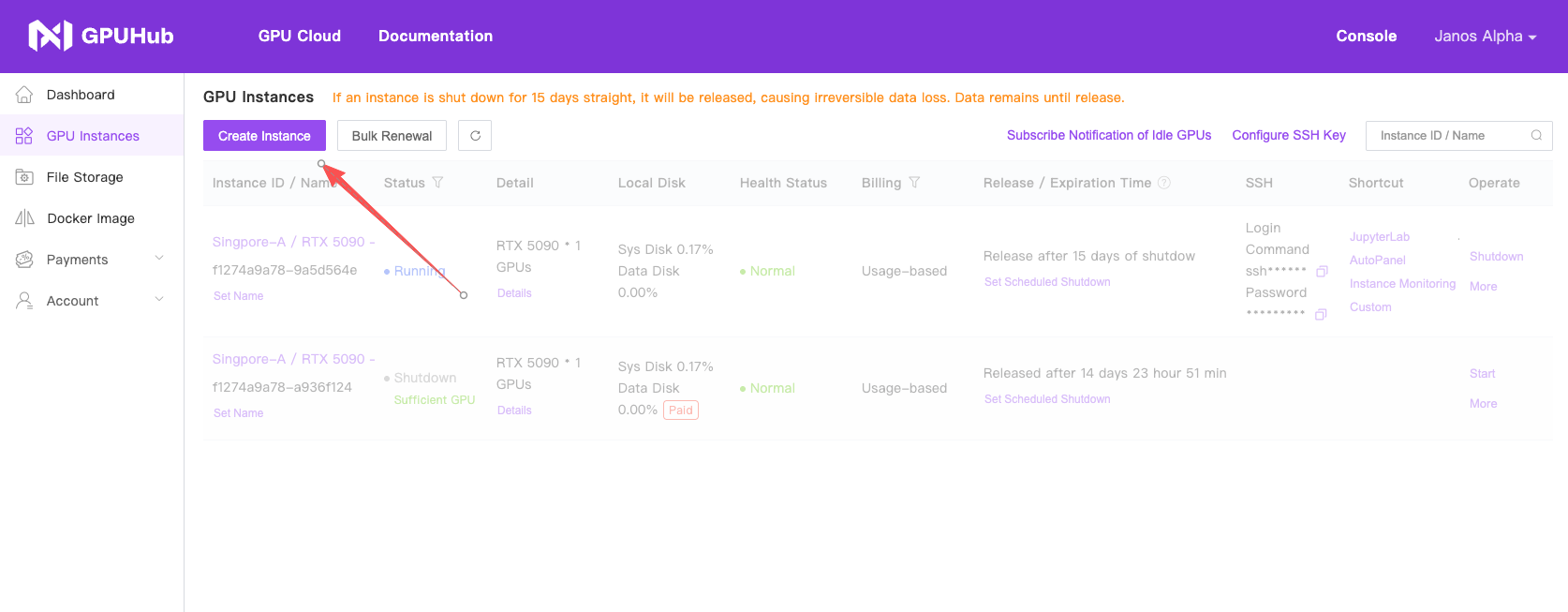
After registration, enter the console. Under My Instances, click "Launch Instance".
 On the instance creating page, select billing method, region, GPU type and count. Then choose a suitable idle host and image (with basic Deep Learning frameworks or community images) to create the instance.
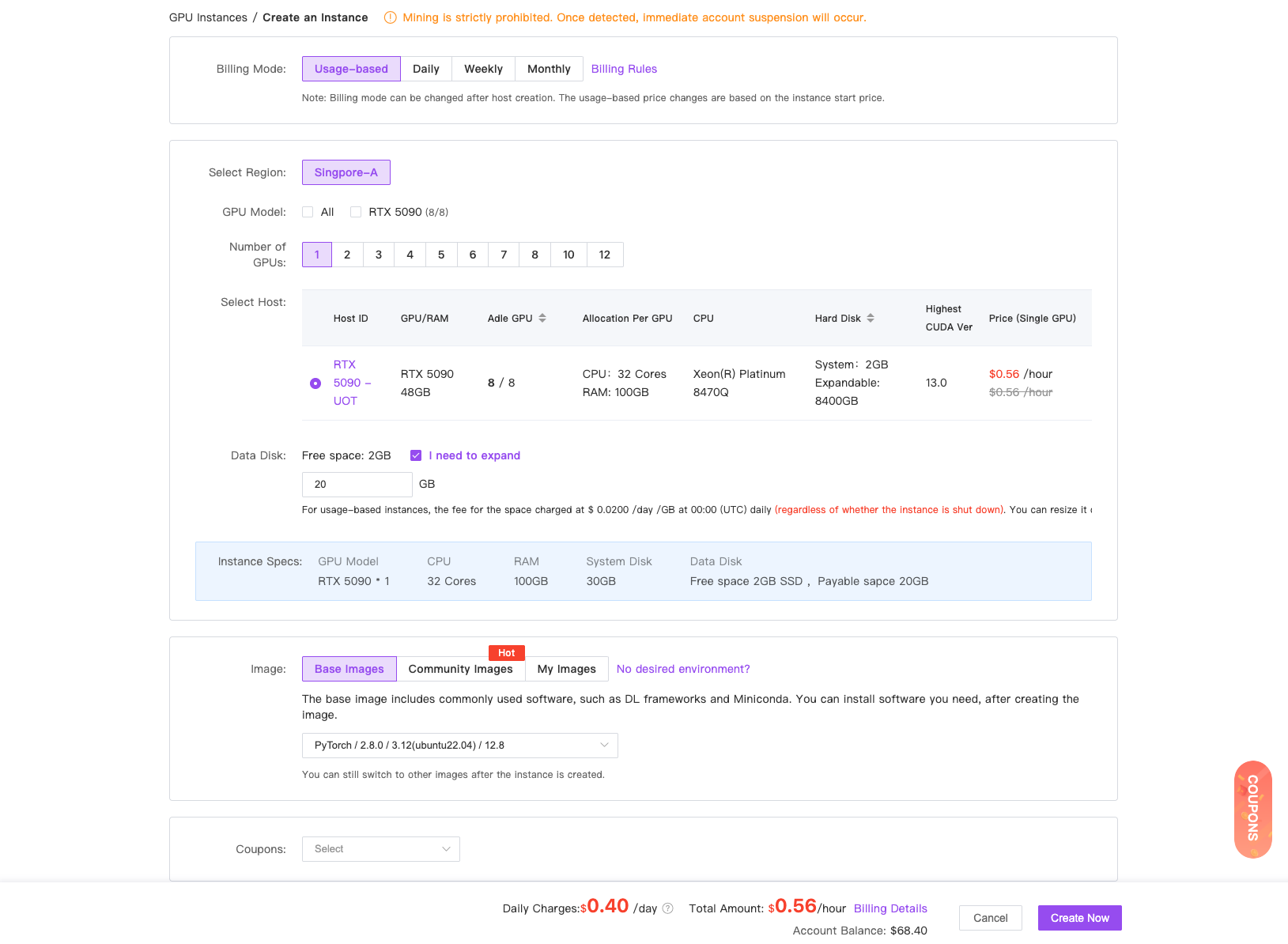 For larger data storage, check the expandable disk size.
Refer to the [Instance Overview](container-instance/overview) for the data disk path.
After creation, wait for startup. The main operation entry points are in the item.
For larger data storage, check the expandable disk size.
Refer to the [Instance Overview](container-instance/overview) for the data disk path.
After creation, wait for startup. The main operation entry points are in the item.
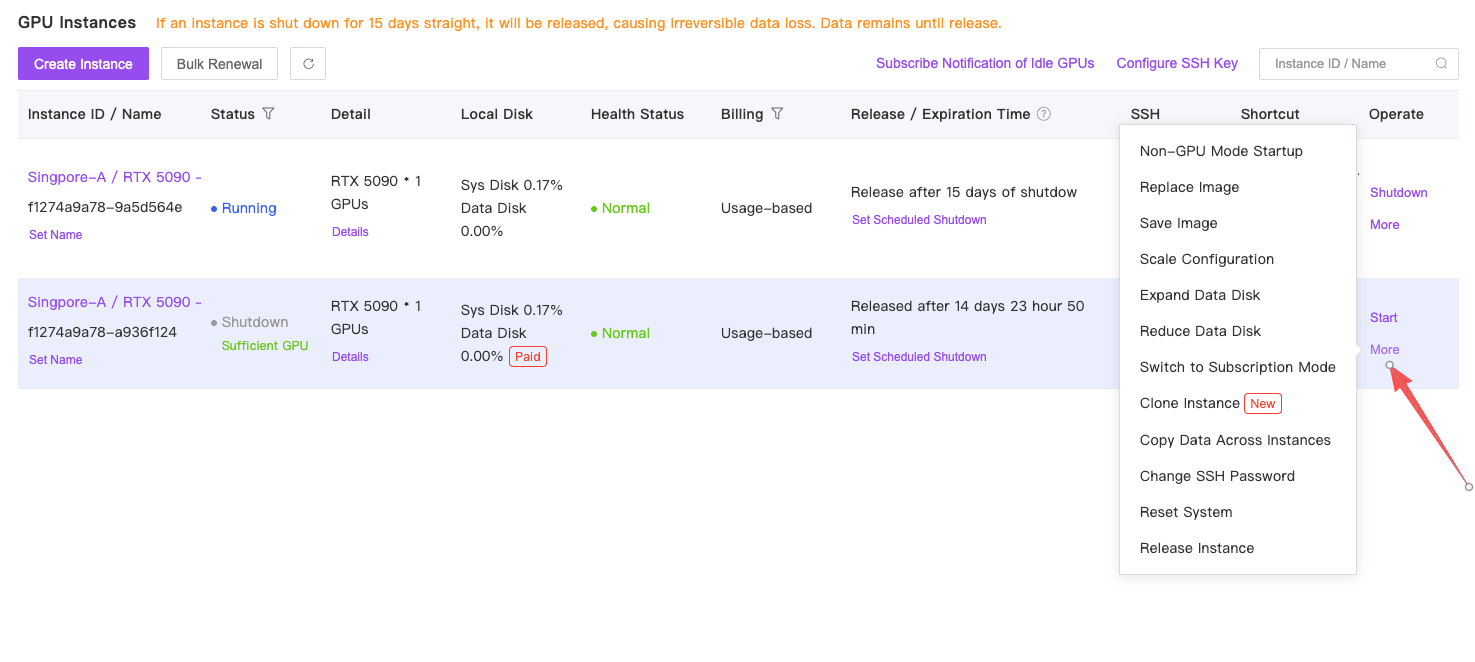 Note that billing starts when the instance status shows 'Running'.
Shut it down promptly to stop billing when not in use.
For billing rules, see [Billing Description](recharge-pricing/billing).
## Upload Data
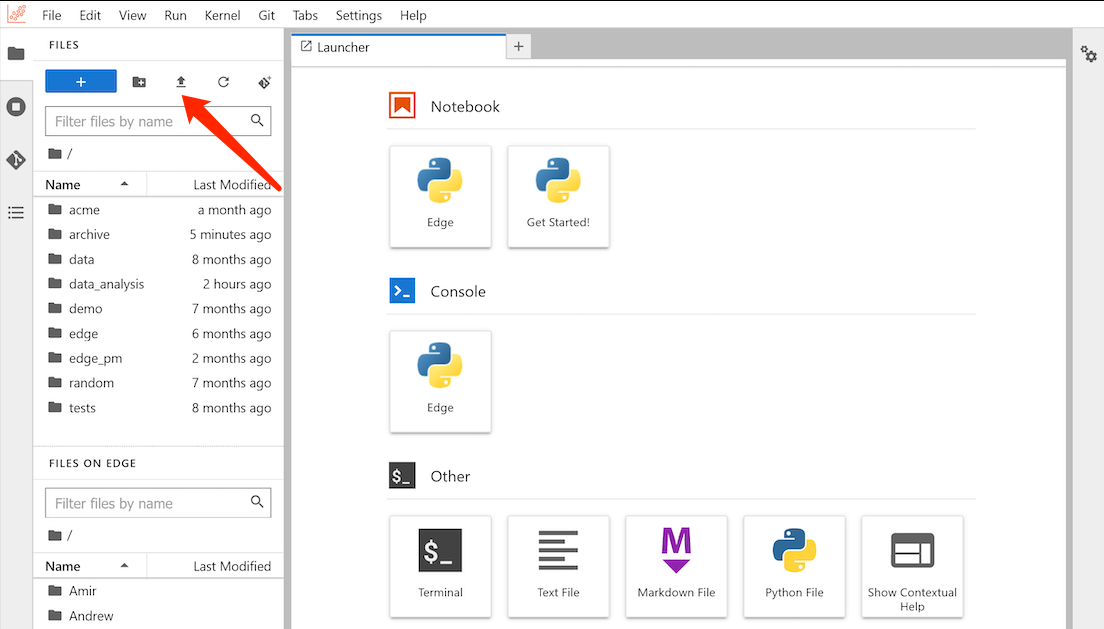
Once the instance is running, find the "JupyterLab" shortcut tool and click to open it.
Locate the upload button in the screenshot to upload data.
For folder uploads or advanced methods, refer to the [Data Upload](data/upload-data) documentation.
Note that billing starts when the instance status shows 'Running'.
Shut it down promptly to stop billing when not in use.
For billing rules, see [Billing Description](recharge-pricing/billing).
## Upload Data
Once the instance is running, find the "JupyterLab" shortcut tool and click to open it.
Locate the upload button in the screenshot to upload data.
For folder uploads or advanced methods, refer to the [Data Upload](data/upload-data) documentation.
 ## Terminal Training
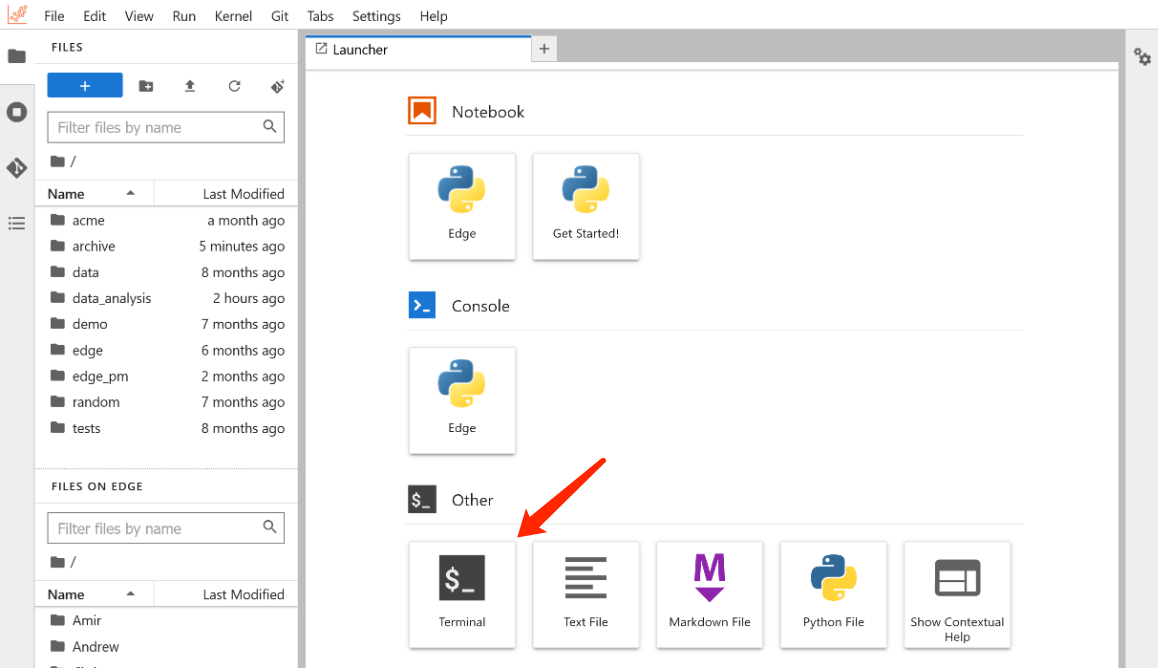
Open the terminal in the JupyterLab page. For remote development with other IDEs, refer to VSCode (recommended) and PyCharm.
## Terminal Training
Open the terminal in the JupyterLab page. For remote development with other IDEs, refer to VSCode (recommended) and PyCharm.
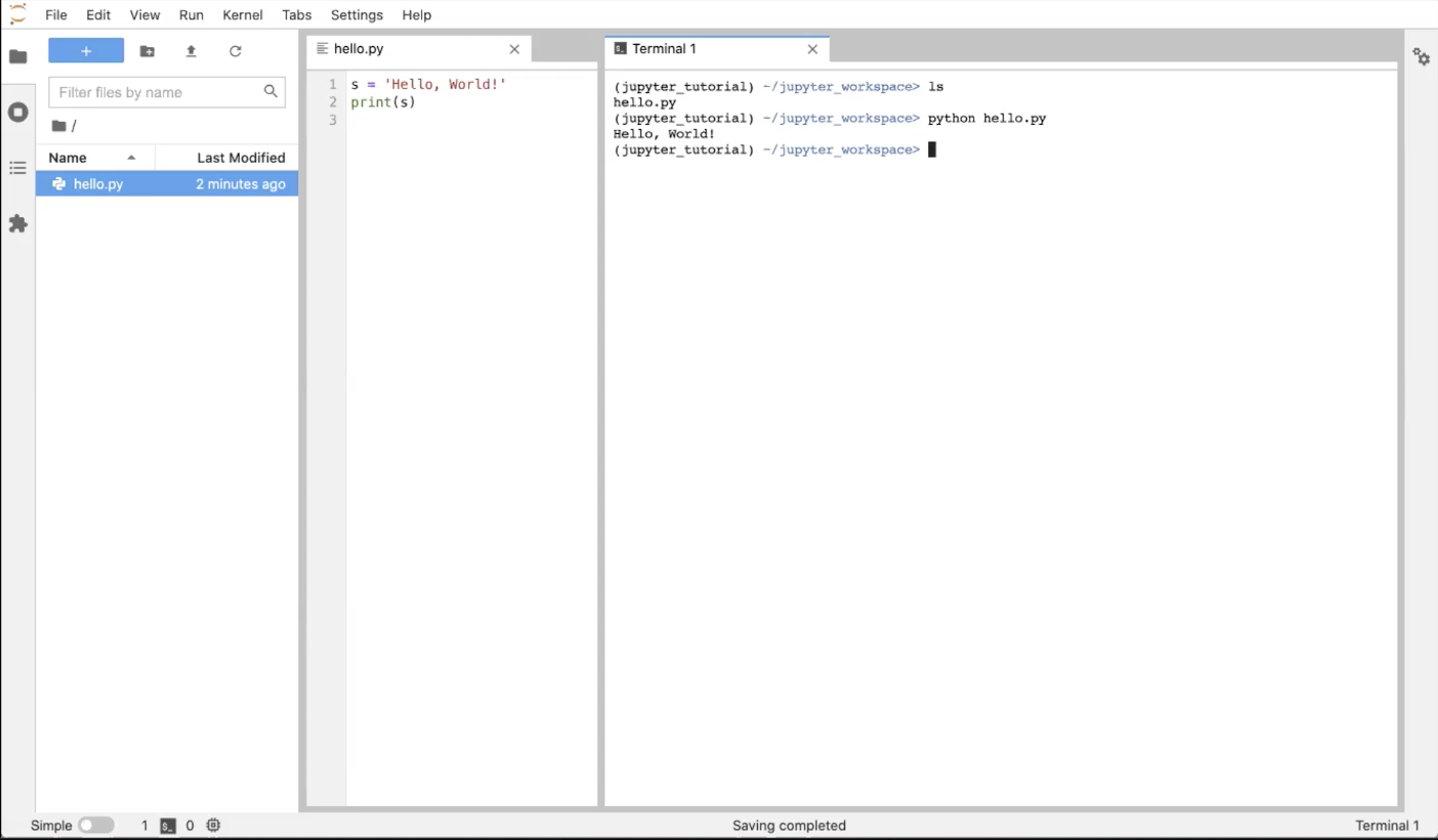
 Execute Python commands in the terminal to complete training.
 ## Advanced Learning
Select GPU type and count
Config your development environment
Upload data with FileZilla
Securely access your instance via SSH
Expose custom ports to make your applications accessible
Remote development with VSCode
Remote development with PyCharm
Keep alive with a daemon process
Basic Linux commands
Frequently asked questions
## Advanced Learning
Select GPU type and count
Config your development environment
Upload data with FileZilla
Securely access your instance via SSH
Expose custom ports to make your applications accessible
Remote development with VSCode
Remote development with PyCharm
Keep alive with a daemon process
Basic Linux commands
Frequently asked questions