

GPUhub Elastic Deployment API
Read API Documentation for more details.
Why Not Serverless
Why choose Elastic Containers over Pure Serverless
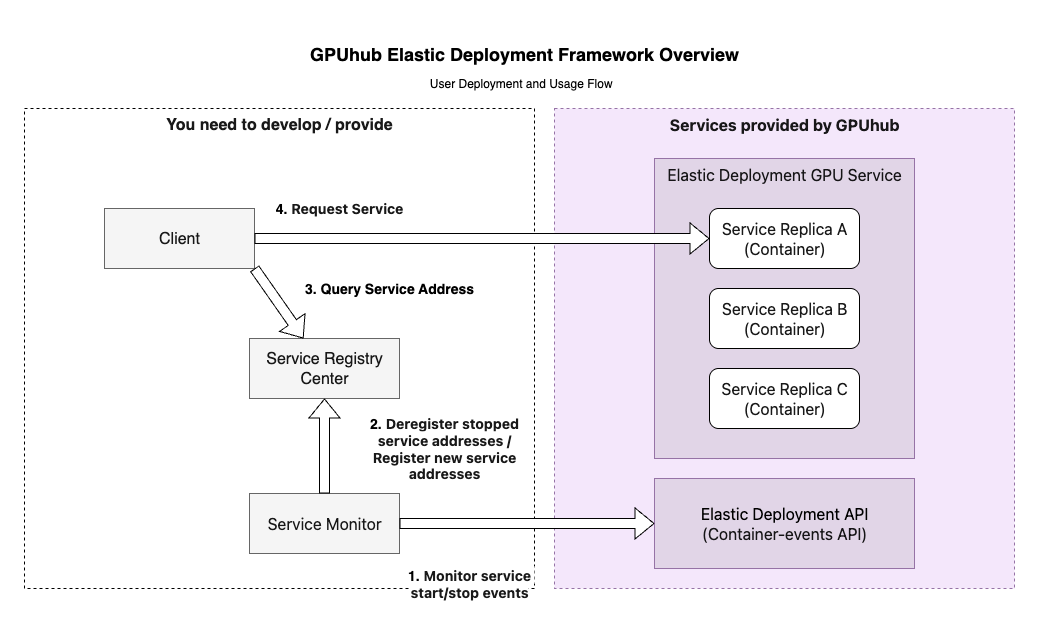
Best Practices
Efficient deployments, service discovery/load balancing, and container management etc.
Scheduling Mode Overview
Resource Partitioning Logic
How Resources Are Divided (Computing Power Units)?- GPUhub manages multiple physical servers (hosts) with varying setups, including different GPU models/numbers, CPU cores, and memory amounts.
- For each host, the system automatically divides the CPU and memory evenly based on the number of GPUs (e.g., if a host has 8 GPUs, it creates 8 “units”).
- Each unit is a fixed bundle: 1 GPU + a portion of CPU + a portion of memory. You can’t change or split these bundles—it’s designed for simplicity.
- Host A has: 8x RTX 5090 GPUs, 128 CPU cores, 720GB memory.
- Each unit on this host: 1x RTX 5090 GPU + 16 CPU cores + 90GB memory.
- When you create a container (your virtual machine), you can only request 1 to 8 units. The CPU/memory/GPU ratios stay fixed—no custom tweaks.
Creation & Launch Mechanism
How Containers Are Created and Started (Scheduling)?- When you request a container, you specify basic conditions like: GPU model and count, CPU core range, memory size range, or price limit.
- The system scans available hosts and picks one that matches your conditions (due to the fixed units and host differences).
- Once matched, the container starts right away on that host.
Available hosts:Host A: 8x RTX 5090, 128 CPU cores, 720GB memoryHost B: 8x RTX 4090, 64 CPU cores, 720GB memoryHost C: 8x RTX PRO 6000, 128 CPU cores, 360GB memoryYour request: 8 GPUs, CPU cores between 100-200, memory between 224-1024GB.System matches: Host A or Host C (Host B doesn’t meet CPU range).If on Host A: You get 8x RTX 5090, 128 CPU cores, 720GB memory.If on Host C: You get 8x RTX PRO 6000, 128 CPU cores, 360GB memory.
Elastic Scheduling Mode
Mode 1: ReplicaSet-Type Scheduling
Applicable Scenarios: Long-term services requiring high availability, such as web apps, APIs, or persistent inference servers.
Mode 2: Job-Type Scheduling
Applicable Scenarios: Batch processing tasks, such as distributed training jobs, data processing pipelines, or one-off computations that run to completion.
Mode 3: Container-Type Scheduling
Applicable Scenarios: Simple, single-instance tasks like quick testing, debugging, or short-lived scripts.
Container Lifecycle
The container’s lifecycle depends on the execution lifecycle of your set cmd command. If the cmd execution ends, the container will exit and shut down. Therefore, if the command to start the application in your cmd is backgrounded, addsleep infinity at the end of the cmd to prevent the parent process from exiting, which would cause the container to shut down and all other processes to end. The following two methods work (specific commands are examples only):
Billing
Please refer the part of elastic-deployment in Billing for more details.Differences Between “Container Instances” and “Serveless Containers”
| Container Instances (Rented in Computing Market) | Elastic Deployment GPU Containers | |
|---|---|---|
| 1. Data Retention Rules | Have a data retention period after shutdown. | Release data immediately upon shutdown and do not retain it. |
| 2. Data Disk Expansion | Support data disk expansion. | Do not support expansion; default data disk size is 50GB. |
| 3. Restart Method | Can be restarted as long as not released. | Cannot be restarted after stopping. If the deployment has stopped, create a new deployment; if not stopped, adjust the number of running containers by setting replica count. |
| 4. Entering Container Method | (Assumed to support JupyterLab, based on context). | Have no JupyterLab entry; to enter the container, obtain SSH command and password (refer to Documentation). |